Localized color editing

Replace Colors in Images With AI

Try a different color on a product, outfit, logo, object or background. Select the area, describe the new shade and generate a realistic color preview online.
See How It Works
  • ✓ Start without signup
  • ✓ JPG, JPEG, PNG or WebP
  • ✓ Review every generated result
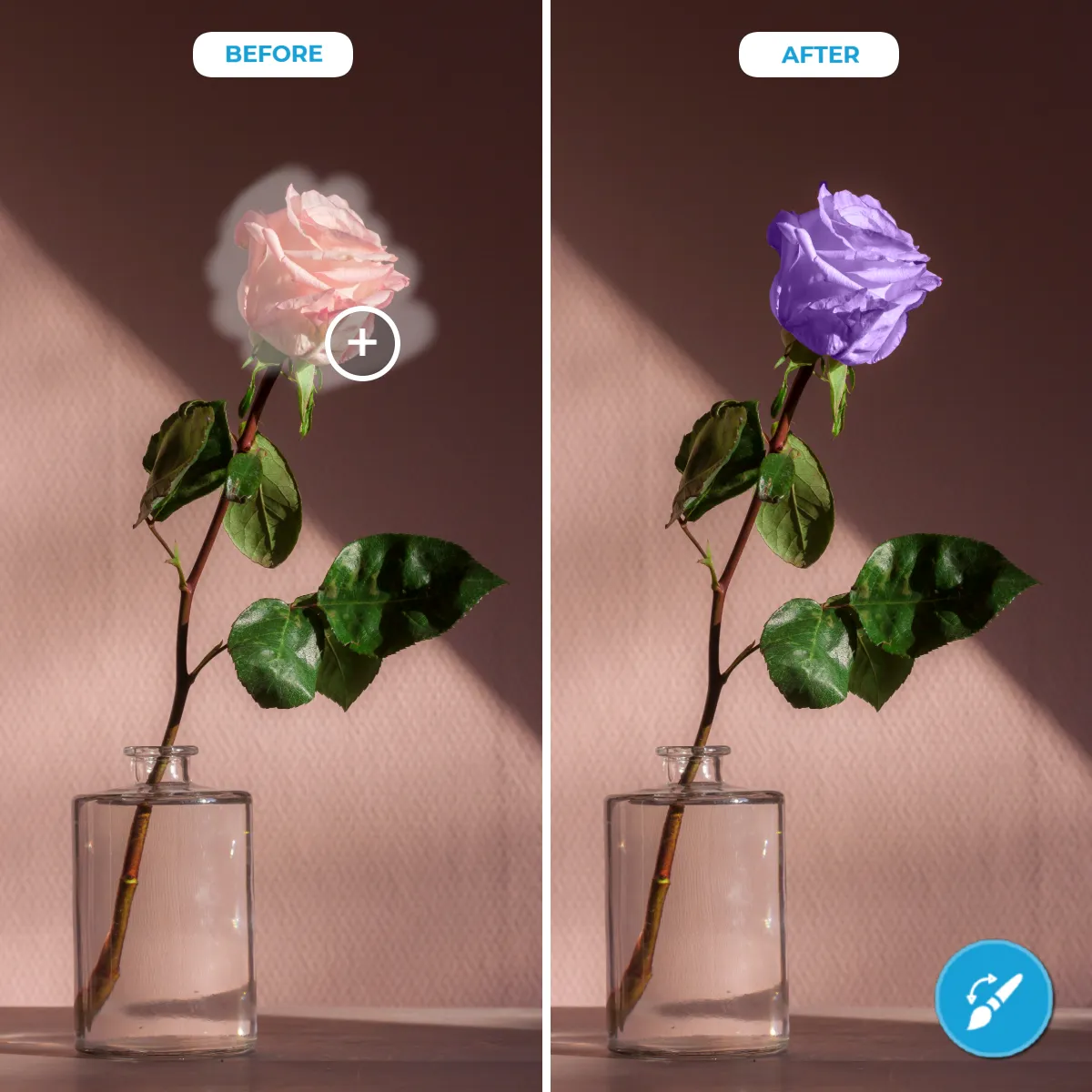
Pink rose changed to purple with the PxBee AI Color Replacer
Change the selected color while keeping the scene recognizable.
Brush · describe · generate

Drag Your Photo Here and Choose a New Color

Select a file and enter a color request. The detailed brush workspace opens after processing.

White shoes changed to mint green with AI
Drag your photo hereor choose JPG, JPEG, PNG or WebP · up to 20 MBChoose Photo

Choose an image and describe the new color to continue.

Only upload images you own or may edit. Review the Privacy Policy.

Focused recoloring

Recolor a Selected Area Without Complex Masks

A color change often needs more than a flat overlay. Surfaces contain highlights, shadows, reflections, folds and texture. PxBee uses your brushed selection and prompt to generate a localized edit that follows the surrounding visual context.

The result is a creative preview—not a guaranteed color specification. Keep the original file and inspect boundaries and fine details before publishing.
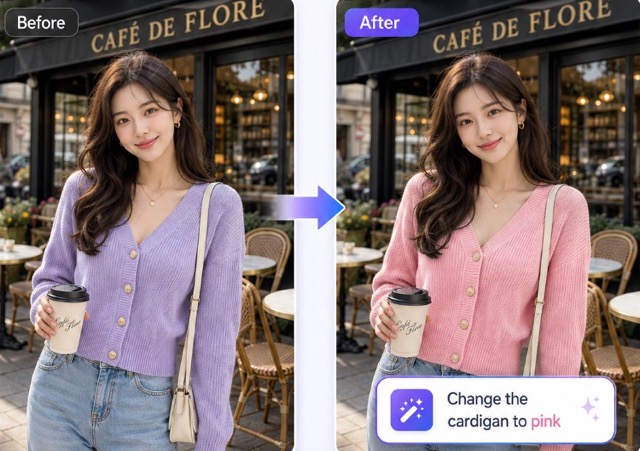
Purple cardigan changed to pink while the rest of the photo stays consistent
A selected garment recolored from purple to pink.
Products, clothing, graphics and more

What Can You Recolor?

Use targeted color replacement for practical concepts and creative comparisons.

01

Products and packaging

Preview alternate product finishes, containers, furniture, shoes or campaign variants.

02

Clothing and accessories

Explore a different garment, bag, shoe or accessory color while retaining the outfit context.

03

Logos and graphics

Compare owned brand marks or design elements before rebuilding the approved production file.

04

Backgrounds

Adjust a selected backdrop region without requesting a completely new scene.

05

Hair and creative styling

Create a non-binding visual preview of a new shade on an authorized portrait.

06

Everyday objects

Recolor cars, flowers, room decor and other defined objects for visual exploration.

Six clear steps

How to Replace a Color Online

  1. 01

    Upload your image

    Choose a clear JPG, JPEG, PNG or WebP image containing the area you want to recolor.

  2. 02

    Select the target area

    Brush over the complete object, garment, logo element or background region.

  3. 03

    Describe the new color

    Use a direct phrase such as “muted sage green” or “glossy cherry red.”

  4. 04

    Generate the recolor

    PxBee uses your selection, prompt and surrounding image to create a new color treatment.

  5. 05

    Check important details

    Review edges, texture, highlights, shadows, labels, logos and nearby objects.

  6. 06

    Download the best result

    Compare variations and save the version that suits your intended use.

A guided browser workflow

Why Use PxBee’s AI Color Replacer?

Guided local editing

Brush the part that should change rather than applying one adjustment across the entire photo.

Prompt-based requests

Describe the shade and finish in plain language instead of building complex adjustment layers.

Texture-aware generation

The model uses nearby visual context to recreate surface detail, highlights and shadows.

Browser-based access

Start from a modern desktop or mobile browser without installing a desktop application.

Common image formats

Upload JPG, JPEG, PNG and WebP images through the current page workflow.

Creative comparison

Generate options for early decisions, presentations, layouts and preference testing.

Concepts before production

AI Color Replacement for Product Images

Color previews can support early ideation, mockups, preference testing, presentations, campaign layouts and merchandising discussions. They are useful when a team wants to compare directions before producing every physical variant.

Protect product accuracy

AI output can alter labels, logos, controls, texture, stitching or material finish. Do not publish a generated variation as a real product option unless the image accurately represents what customers will receive.
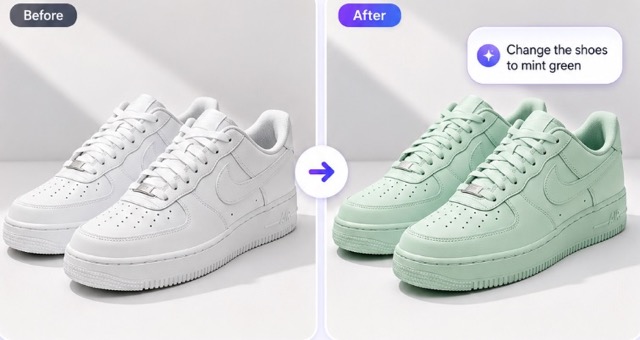
Product shoes recolored from white to mint green
Use generated product colors for concepts, then verify the actual merchandise.
Keep the master artwork intact

Recolor Logos and Brand Graphics Carefully

Use AI-generated variations to explore a direction, not as the final brand asset. Rebuild approved logo colors from the original vector master using official HEX, RGB, CMYK or Pantone specifications.

Check minimum contrast, accessibility, print profiles, export settings and brand rules. Keep an unchanged master file so future production work does not depend on generated pixels.
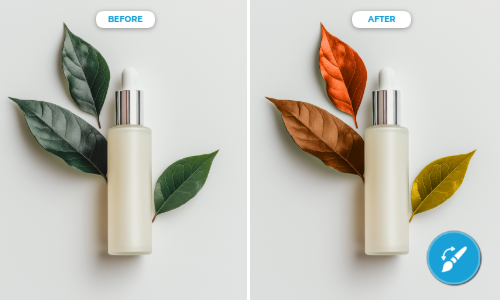
Decorative product leaves recolored while the bottle remains unchanged
Recolor only the intended design element and review every nearby detail.
Why one color can look different

Understanding Color Accuracy

A generated color is a visual approximation. It is not a substitute for color-managed production.

The same color can appear different because of room or studio lighting, highlights and shadows, screen calibration, brightness, browser color management, image profiles, compression, printing methods and material finish.

AI generation adds another variable: it may reinterpret surface texture or nearby pixels while producing the requested shade.
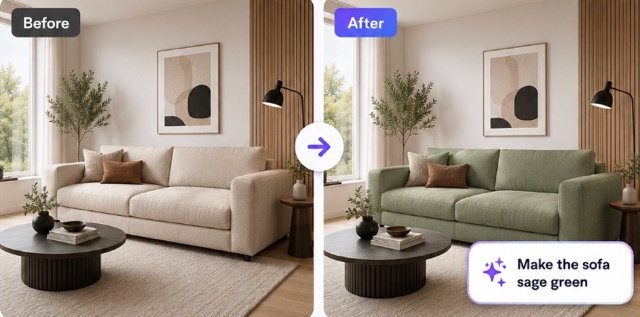
Living room sofa changed from cream to sage green
Sage green follows the room lighting, so it will not appear as one flat digital value.
Sharper selections, clearer prompts

Tips for Cleaner Color Replacement

01

Cover the complete object

Include every visible part that should adopt the new color.

02

Protect nearby areas

Use a smaller brush near hair, hands, labels and overlapping objects.

03

Describe the finish

Add terms such as matte, glossy, metallic, velvet or translucent when they matter.

04

Review text and logos

Generated editing can distort small lettering and brand details.

05

Compare generations

Produce more than one result when the first variation changes texture or edges.

06

Keep the source image

Retain an unchanged original for comparison and future editing.
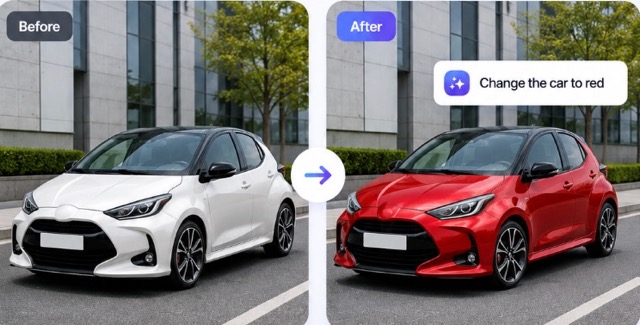
Different subjects, one focused workflow

Color Replacement Examples

Choose the most focused editor

Choose the Right PxBee Tool

ToolBest used when
AI Color ReplacerYou want to recolor a selected object or area
AI ReplaceYou want to replace an object with different generated content
AI Generative FillYou want to add or reconstruct content
Background ChangerYou want to replace the complete background
AI Clothes ChangerYou want to change the garment, not only its color
Hairstyle ChangerYou want a focused hairstyle or hair-color preview
Photo EnhancerYou want to improve overall clarity and detail
Human review remains essential

Know the Limits of AI Recoloring

Fine edges, transparent materials, reflections, tiny text, complex patterns and mixed lighting can produce imperfect results. Generated colors can also change nearby details.

For exact specifications, legal evidence, medical imagery or faithful product documentation, use an appropriate professional workflow and preserve the original.
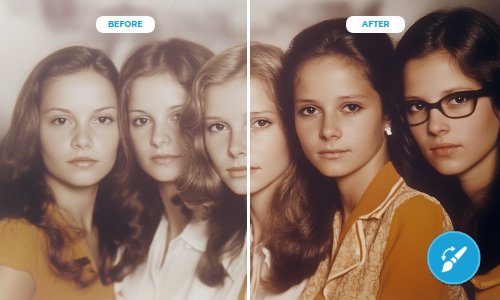
Example showing that historical photo colorization differs from targeted color replacement
Before you recolor

AI Color Replacer FAQ

An AI color replacer is a localized image-editing tool that generates a new color treatment inside an area you select while using the surrounding image as context.

Upload an image, brush over the complete target area, describe the new color, generate the edit and review the result before downloading.

Yes. Use the brush to select only the intended object and keep the selection away from neighboring items where possible.

You can preview new colors on products, packaging, clothing, accessories, logos, graphics, backgrounds, hair and many everyday objects.

You may include a color reference in your prompt, but generative output cannot guarantee an exact production color match. Use professional color-managed software for specification-critical work.

The tool uses image context to recreate texture, highlights and shadows, but it may change fine details. Always compare the output with the source.

The selection may extend beyond the object or the boundary may be difficult to interpret. Use a smaller brush near edges and regenerate.

Yes, for concepts and visual previews. Check labels, packaging, materials and product accuracy before publishing an edited image.

No exact commercial color accuracy is guaranteed. Lighting, material finish, display calibration, image profiles and AI generation can all affect appearance.

Yes. Select the complete garment and describe the desired color and finish. The AI Clothes Changer is better when the garment itself should change.

You can preview owned logo variations, but use the approved vector master and official brand values for production files.

Yes, for a selected region. Use PxBee Background Changer when the complete scene or background should be replaced.

Yes, as a creative simulation. Hair texture, lighting and real-world dye results may differ from the generated image.

No. This page is designed for targeted recoloring. It does not verify historically accurate colors in black-and-white photographs.

The current uploader accepts JPG, JPEG, PNG and WebP files up to 20 MB.

PxBee currently presents this workflow as free. Check the live editor for current generation limits, credits, exports or paid options.

This page lets you select an image without signing up. Any account requirement shown during generation or export is controlled by the live editor.

The browser-based interface is responsive for current mobile devices, although precise brushing is usually easier on a larger screen.

That depends on your rights to the source image, PxBee’s current terms and whether the result accurately represents the product or subject.

Review the PxBee Privacy Policy for current information about processing, retention, deletion and security before uploading private or sensitive images.
Try a new visual direction

Try a New Color on Your Image

Upload a supported image, select the target area, describe the shade and inspect the generated result.

JPG, JPEG, PNG and WebP · current editor limits may apply
Sage green sofa generated with the PxBee AI Color Replacer