Not a full text-to-image generator
A standalone text-to-image generator creates both subject and background. This workflow begins with your uploaded subject and changes the area around it.
Upload a product, portrait or object photo. PxBee keeps the subject and places it in a new studio, indoor, outdoor, minimalist or seasonal setting.
Only need white, a solid color or your own image? Use the Background Changer.
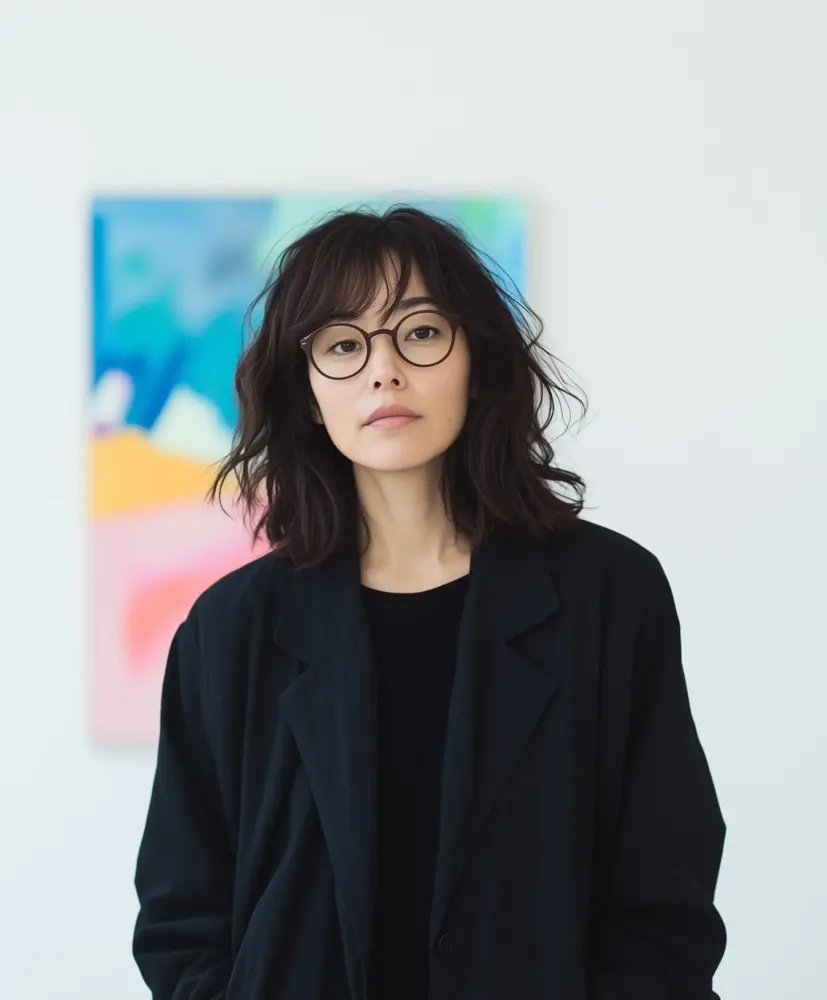
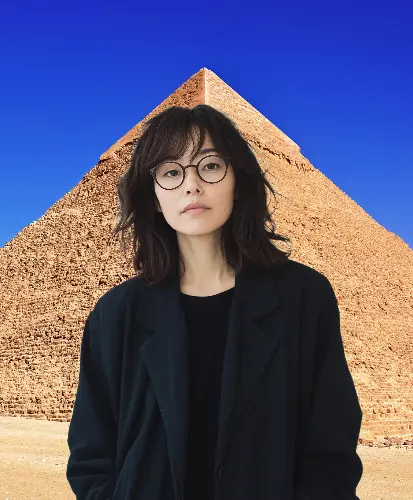
The right background can change how a product, portrait or campaign image feels. Arranging a physical setting for every idea can be impractical.
PxBee’s online AI Background Generator prepares the main subject from your photo and changes the scene around it. Explore a different setting without manually tracing the subject.
An AI background generator creates a new setting for an existing image.
PxBee first identifies the main subject and prepares it for a new scene. It then places the subject into an available AI-created setting. This can turn a basic source photo into a new product, portrait or marketing composition.
Need only removal? Open Background Remover →A standalone text-to-image generator creates both subject and background. This workflow begins with your uploaded subject and changes the area around it.
A Background Changer applies white, another color, a template or an uploaded image. An AI background adds a scene intended to provide context.
Choose a clear JPG, JPEG, PNG or WebP image containing the subject you want to preserve.
PxBee identifies the main foreground subject so the original scene can be replaced.
Choose from available indoor, outdoor, minimalist, seasonal or photography-studio settings.
Check subject edges, lighting, perspective, scale, reflections and shadows. Try another style when the scene does not look natural.
Export the completed image in an available format or refine it with another PxBee tool.
Select a category below to preview its intended use. The production editor shows the scenes currently available.
Clean commercial-style scenes for products, promotions, advertisements and catalog layouts.
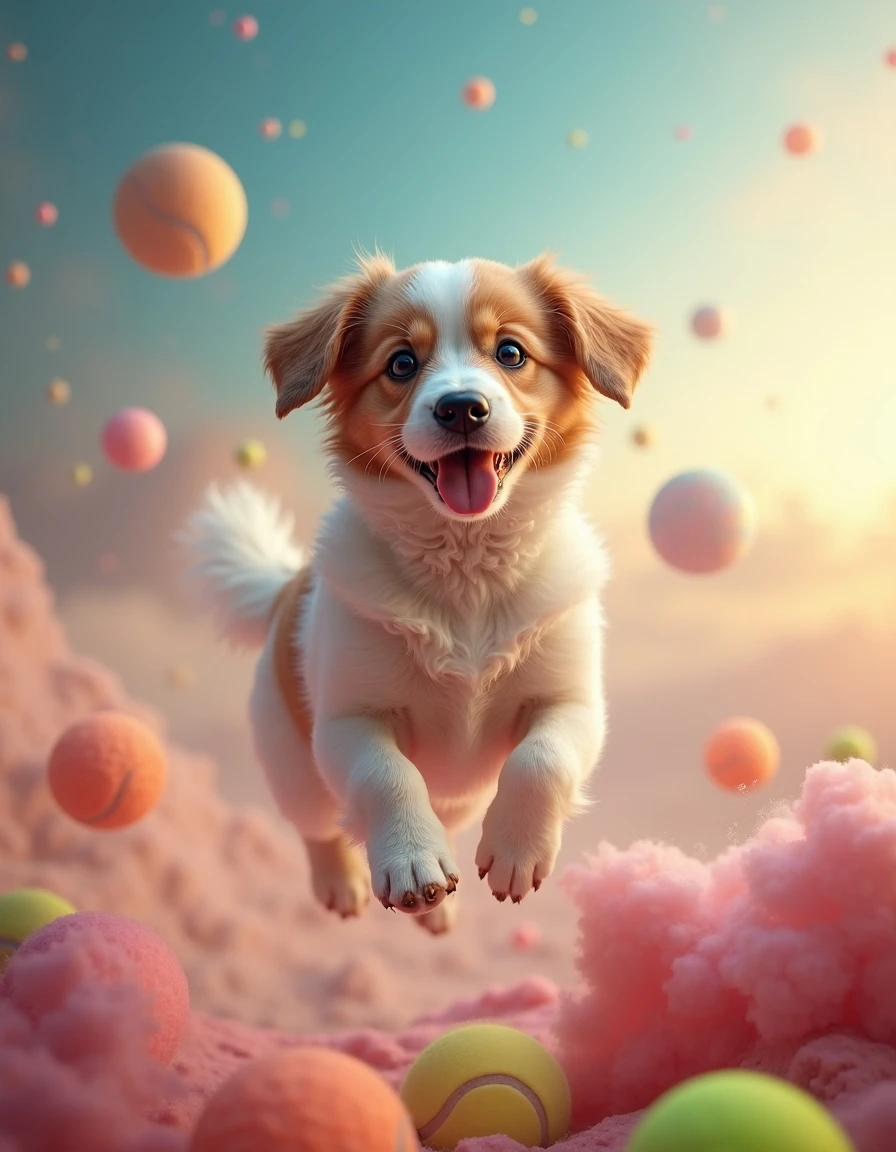

Compare scene direction while preserving the main puppy subject.
Use a new contextual scene for an editorial or social concept.
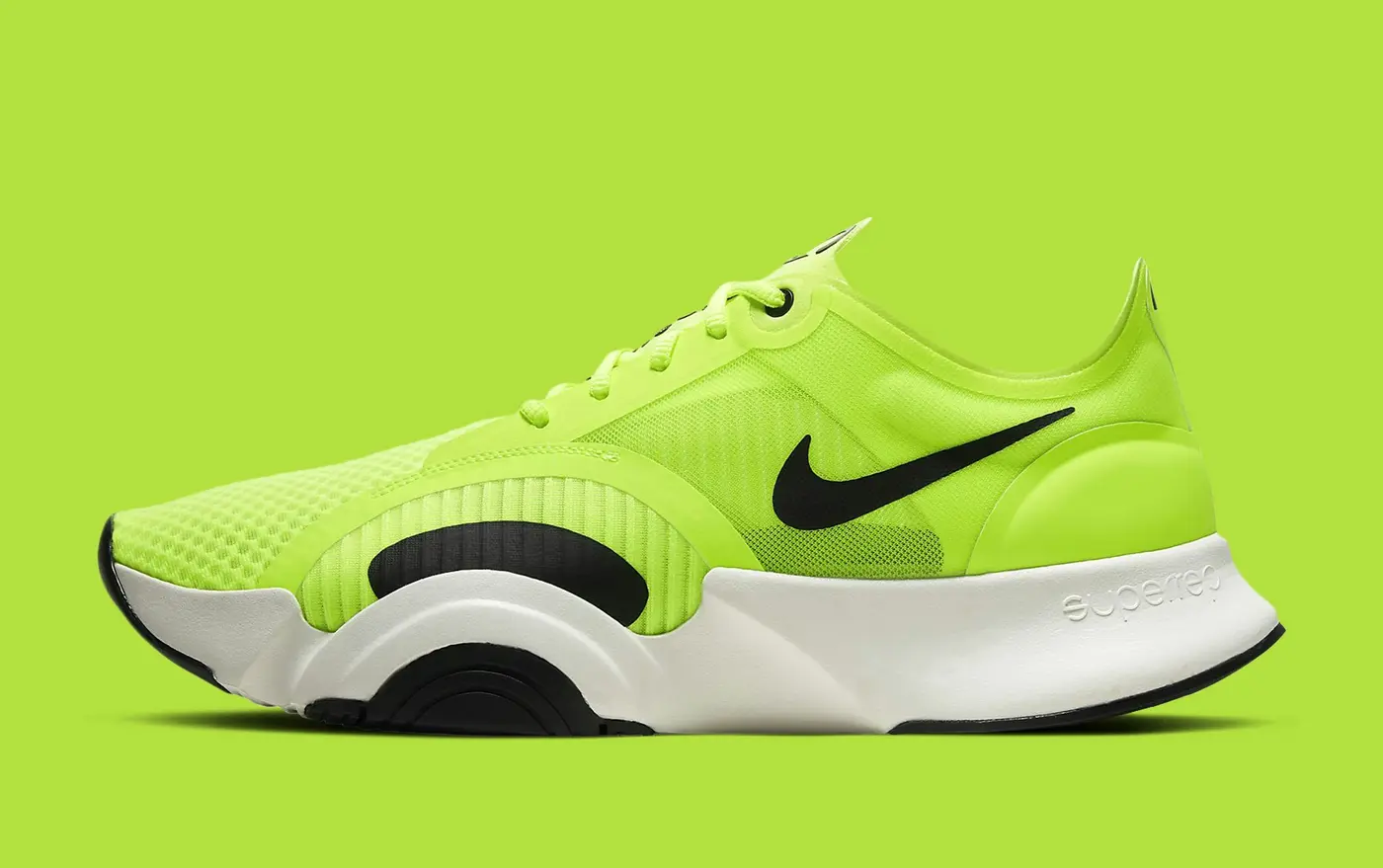
A product background should support the item rather than distract from it. PxBee can help explore studio, lifestyle or seasonal settings.
Show the product in a contextual scene that helps communicate its style or intended environment.
Place a product in a concept designed around a launch, offer, season or content theme.
Create alternatives for banners and campaign planning. Leave open space if text will be added later.
Explore a consistent visual direction across related products without claiming unsupported batch capabilities.
Generated product imagery must not change or misrepresent color, shape, labeling, included accessories or scale.
Read How to Create a Product Background With AI →Explore settings for profile and team graphics, social posts, event promotions, editorial concepts, presentation slides and creative portraits.
For identity documents, regulated submissions or formal credentials, use the required real background and follow the relevant authority’s specifications.Furniture, lighting, decorations and home products often benefit from contextual presentation. Explore modern living rooms, minimal interiors, home offices, bedrooms, patios and retail-style displays.
Generated rooms are creative visualizations. They may not represent accurate dimensions, installation requirements or architectural conditions.If the live editor provides text prompting, describe the scene rather than repeating the subject. If it provides presets only, use these ideas to choose the closest category.
Light gray photography studio · modern home office · warm wood counter · outdoor café table · minimal cream pedestal
Soft daylight from the left · diffused studio light · warm evening light · bright overcast daylight
Centered with open space on the right · eye-level angle · matte stone surface · shallow background depth of field
Minimal cream studio with a matte stone pedestal, soft daylight from the left, subtle contact shadow, eye-level camera, open space on the right.
Bright modern office with soft window light, natural depth of field, neutral colors and an uncluttered background.
Review the complete composition—not only the subject edge.
If the subject is lit from the left, a background with strong light from the right may look inconsistent.
Products should appear to sit on a surface rather than float above it or sink into it.
An eye-level product photo may not fit a background photographed from high above.
Furniture, cosmetics and packaged goods should appear proportionate to surrounding objects.
Glass, metal and glossy packaging may still reflect colors from the original background.
Confirm faces, hands, labels, logos, edges and small components. A new scene should not alter the subject itself.
The first background will not always be the best fit. Compare alternatives and choose the most natural scene.
Use the generator for a new contextual scene and the changer when you already know the exact color or image.
| Tool | Best for |
|---|---|
| AI Background Generator | Creating or applying a new scene around a subject |
| Background Changer | Adding a solid color, template or uploaded background |
| Transparent Background Maker | Clearing the background without replacing it |
| White Background Tool | Creating a simple white background |
| AI Image Extender | Expanding the canvas beyond the existing image |
Already have an exact color in mind? Learn how to change a photo background color.
Choose the next specialist tool only when the finished composition needs another change.
AI-generated images can contain visual inconsistencies. Review results carefully before using them in advertising, commerce or professional communication.
Do not use a generated scene to make false claims about:
For commercial content, verify PxBee’s current license and terms. Depending on the use, consider disclosing that the background was generated or digitally altered.
Read AI Image Editing Limitations →Upload your subject, explore a new setting and review the complete image before downloading.
JPG, JPEG, PNG and WebP · Maximum 20 MB