Make the background transparent
Create a reusable cutout. Use the Transparent Background Maker or PNG Maker for a focused workflow.
Upload a product, portrait or object photo. PxBee prepares the main subject so you can make the background transparent, add a color, upload your own image, blur the original scene or choose an AI background.
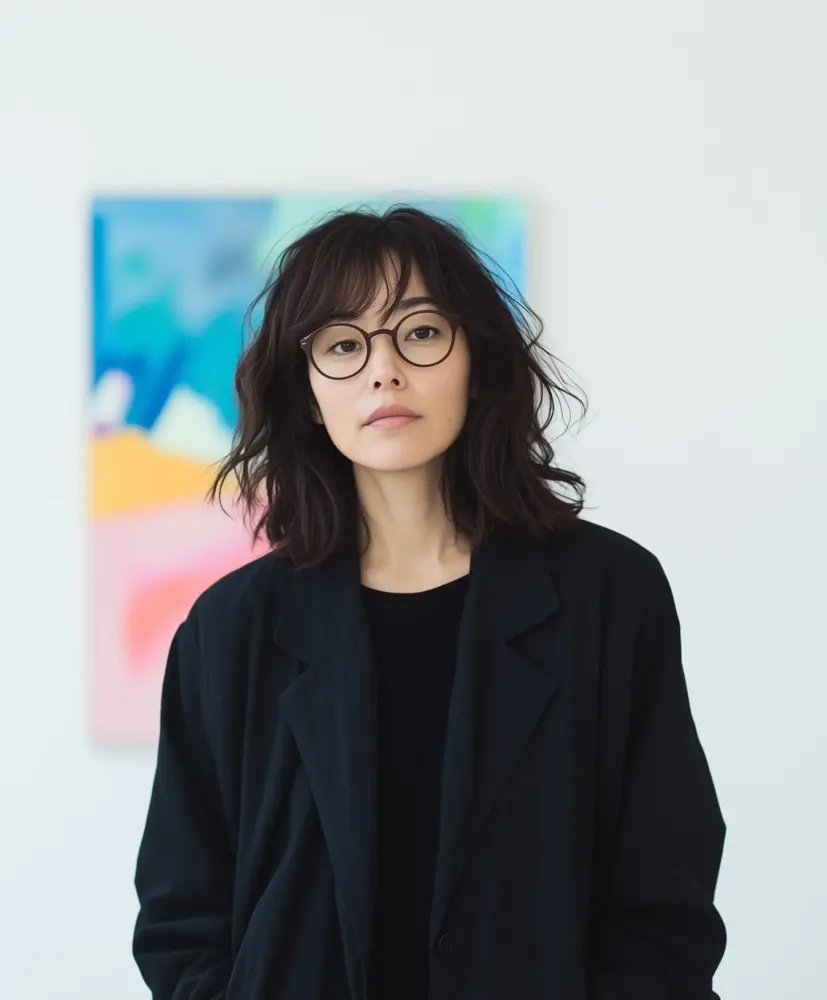

A distracting or unsuitable background can limit where a photo can be used. PxBee’s AI Background Changer prepares the subject and gives you several ways to finish the image.
Use the result in product promotions, presentations, social posts, profile graphics, ads and personal designs.
An AI background changer detects the main subject in a photo, separates it from the surrounding scene and allows a different background to be applied.
Traditional editing may require drawing around the subject manually. PxBee automates the initial separation and describes remove or restore controls for supported corrections.
The result still needs human review. Fine hair, transparent objects, soft shadows and low-contrast edges can challenge any automatic tool.
Need only a clean cutout? Open Background Remover →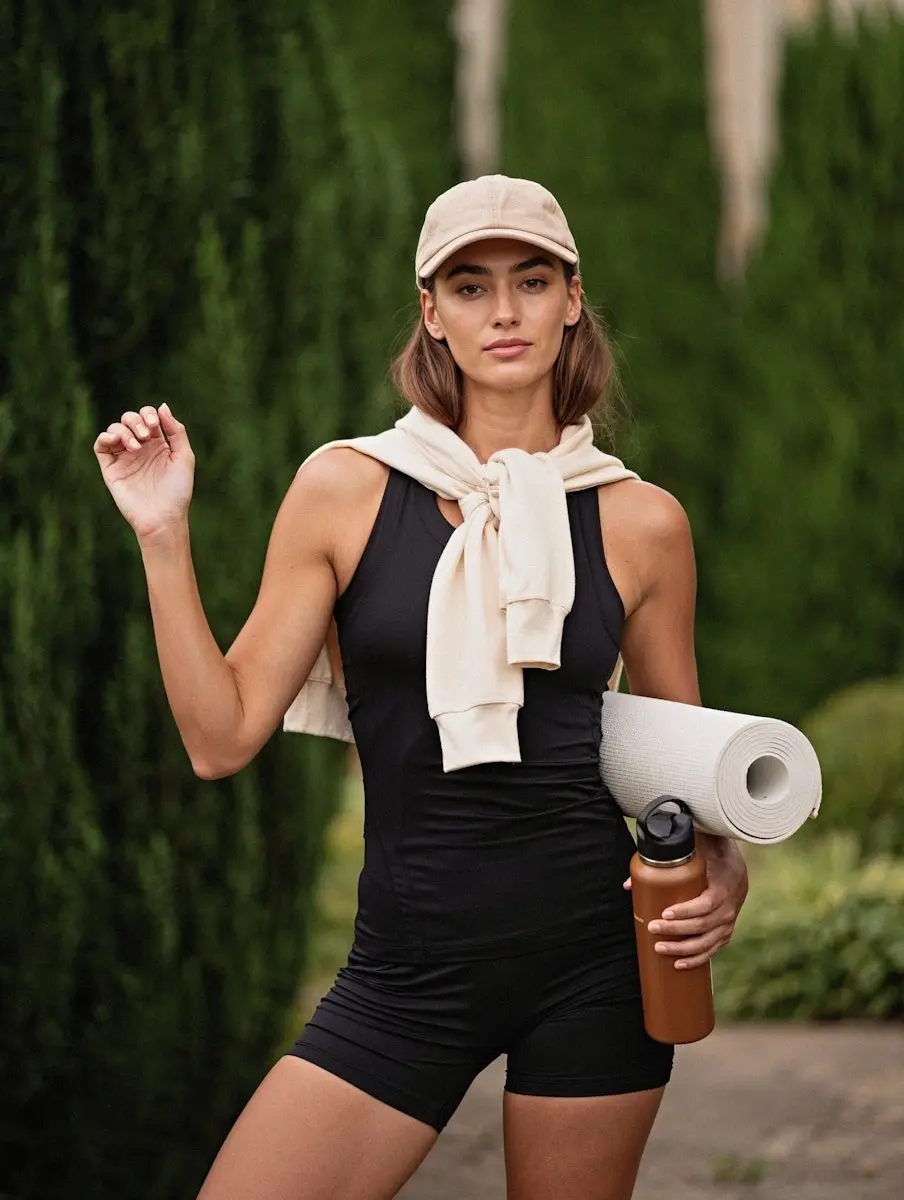
Choose a JPG, JPEG, PNG or WebP image containing a clear primary subject.
PxBee analyzes the photo and isolates the likely foreground subject from the current scene.
Review hair, fur, fingers, shadows, product edges and openings. Use remove or restore controls when available.
Choose transparency, a solid color, an uploaded image, a blurred original scene or an AI background.
Inspect the full composition before exporting. Use PNG when you need transparency.
Use the selector to compare finishing directions. Actual available controls appear in the production editor.
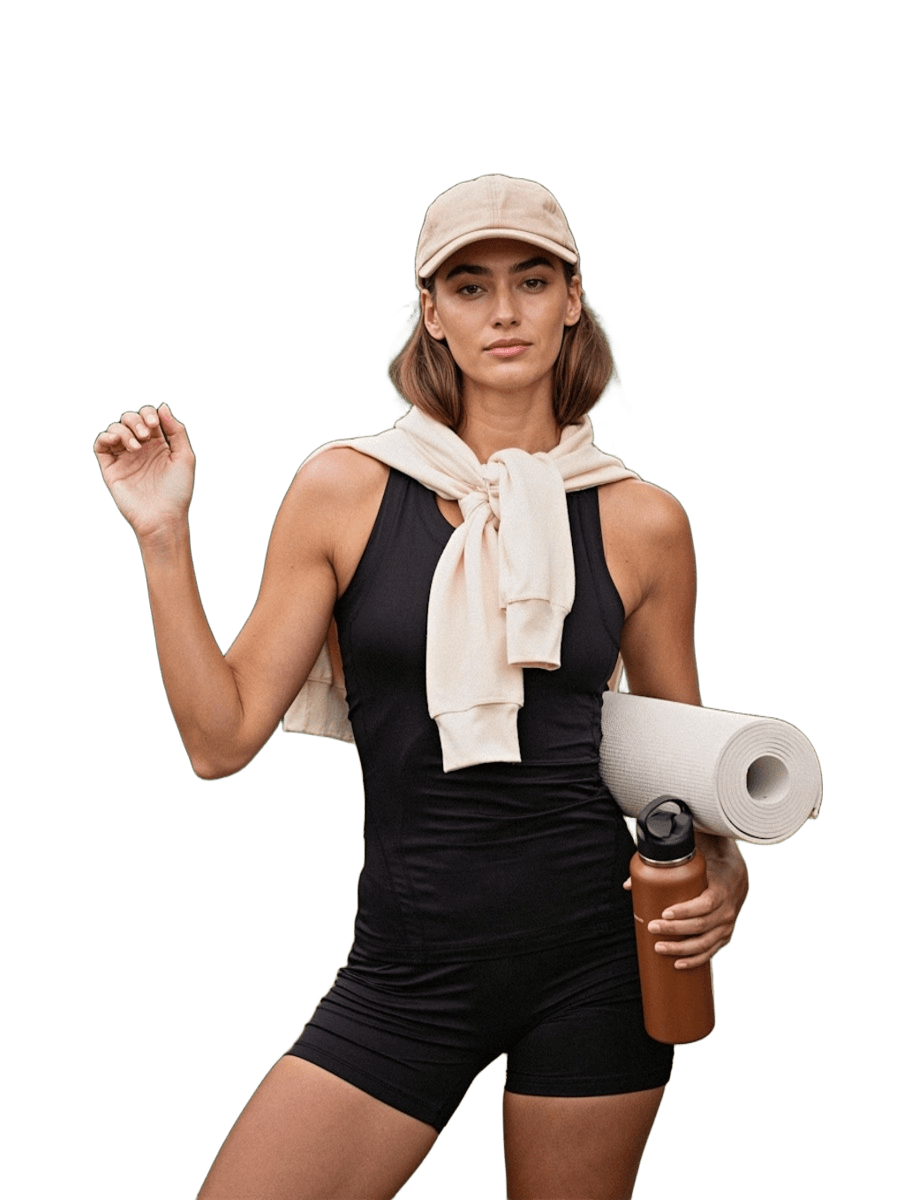
Create a reusable cutout. Use the Transparent Background Maker or PNG Maker for a focused workflow.
White suits clean layouts, documents and many product workflows. It is not correct for every marketplace or official document. Use the White Background Tool.
Choose a brand color, neutral shade or contrasting background. Read How to Change a Photo Background Color.
Add a specific office, room, landscape, campaign graphic or branded design. Use only images you own or may reuse.
Retain the existing scene while reducing distraction. Use moderate blur and inspect the subject boundary.
Try a studio, indoor, outdoor, minimalist or seasonal setting with the AI Background Generator.
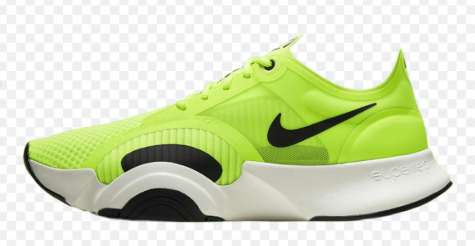
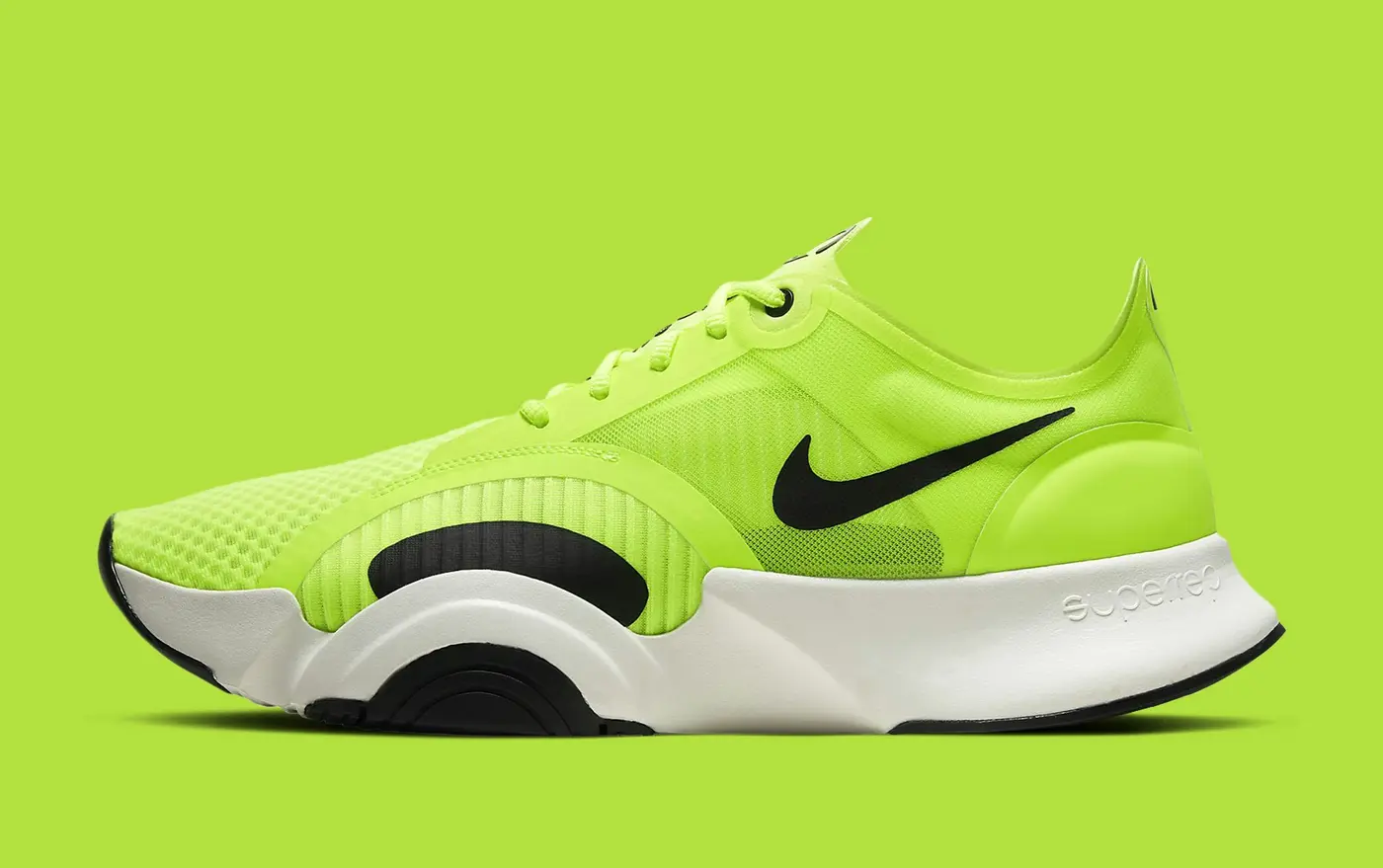
One product may need a transparent cutout, white catalog background, brand-color promotion, lifestyle scene, seasonal campaign or blurred contextual setting.
The replacement background should not change the product’s actual color, shape, label, included accessories or proportions.
Rules vary by platform, category and placement. A lifestyle background may work for secondary images or advertising but not a primary listing. Verify current requirements before publishing.
Replace a distracting portrait setting with a cleaner color, office, outdoor background or creative scene.
Do not describe a generated or replacement background as a real location when that distinction matters.
Use solid colors for simple branded graphics, uploaded campaign art for controlled layouts, or AI-generated scenes for early creative concepts.
Leave enough empty space for:
Changing a background does not guarantee more clicks, engagement or sales. Results still depend on the offer, audience, message and design.
 Moderate blur
Background blur can emphasize the main subject without replacing the original setting.
Blur is not the same as removal. The original scene remains visible but less detailed.
Review the complete image at full size after choosing a replacement.
A subject lit from the left can look pasted onto a scene lit strongly from the right.
A product photographed at eye level may not fit a background shown from above.
Products should appear to rest on a believable surface rather than float.
The original background may reflect color onto hair, glass, clothing or glossy products.
Furniture, people and products should appear proportionate to the replacement scene.
Zoom in on hair and fur, fingers, jewelry, product handles, glass, lace, thin straps and soft shadows.
Read AI Image Editing Limitations →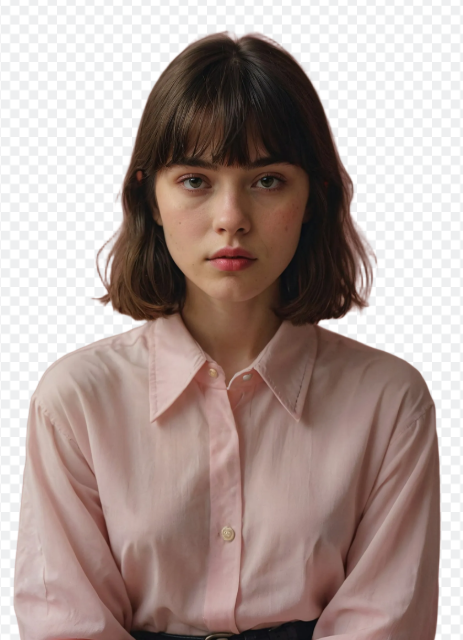
Each PxBee page owns a different finishing intent.
| Tool | Use it when you want to |
|---|---|
| Background Changer | Choose among transparency, color, uploaded image, blur or AI background |
| Background Remover | Remove the current background |
| Transparent Background Maker | Finish with transparency |
| White Background Tool | Finish with white |
| AI Background Generator | Create or apply an AI scene |
| AI Image Extender | Expand the image beyond its current edges |
Choose another specialist tool only when the finished image needs a different edit.
Upload your photo, choose the background that fits your project and inspect the result before downloading.
JPG, JPEG, PNG and WebP · Maximum 20 MB