Overlay selection
You mark the complete emoji or review likely overlays detected by the editor when automatic mode is available.
Select an unwanted emoji, sticker or icon and let PxBee reconstruct the covered area from nearby visual context. Review every result carefully—the tool creates new pixels; it does not reveal hidden originals.
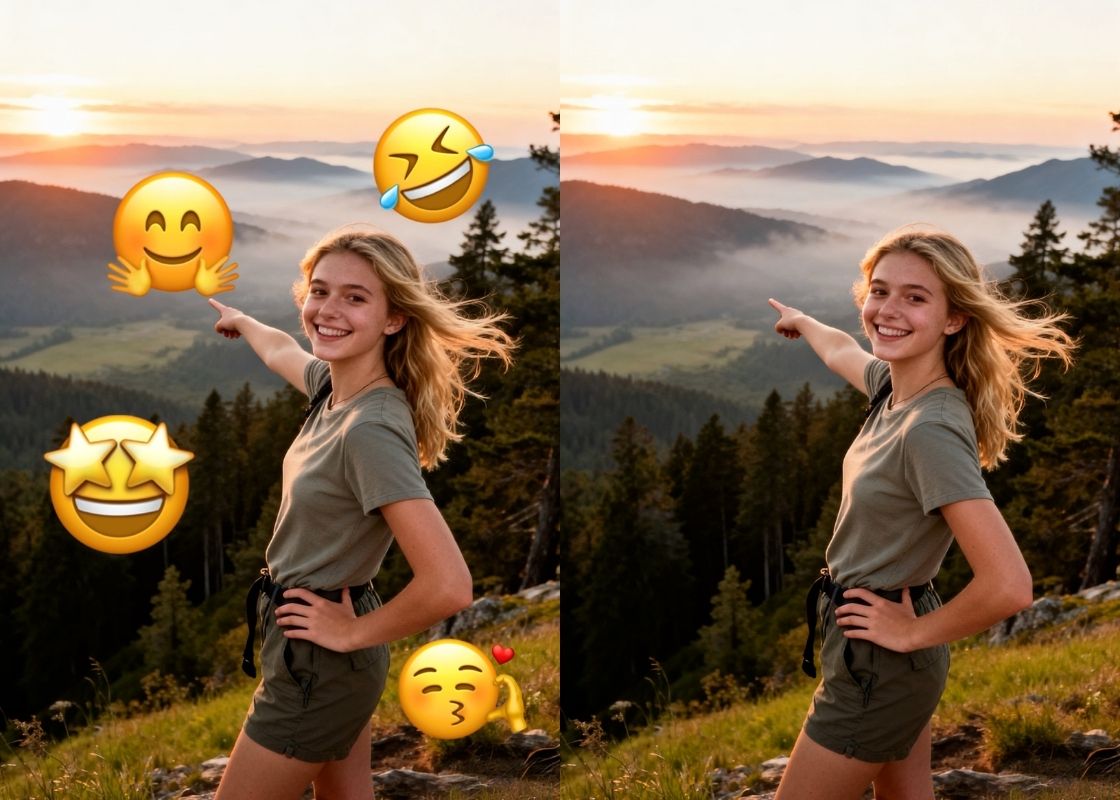
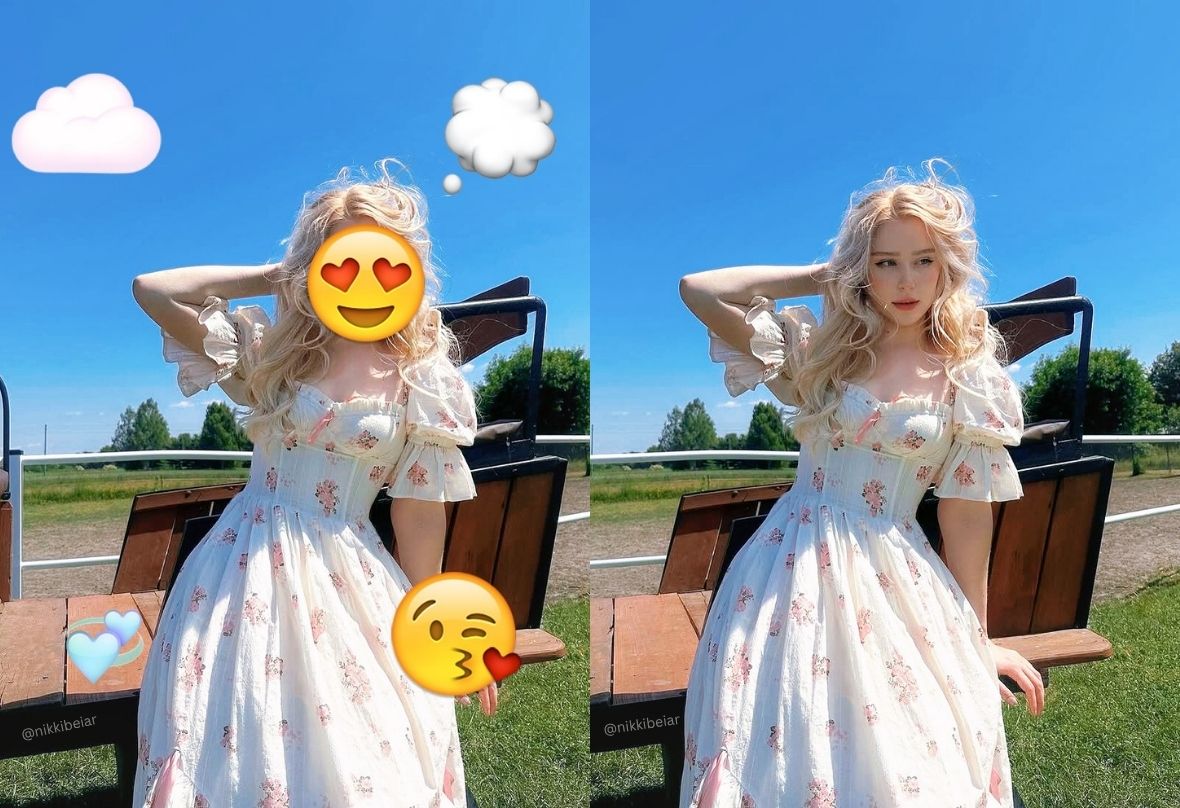
Emojis and decorative stickers can be fun when a photo is shared, but they may become distracting when you reuse your own image for an album, portfolio, product listing or updated social post.
PxBee lets you mark the overlay and rebuild only the selected area. The most believable results usually come from clear images, complete selections and simple visible surroundings.
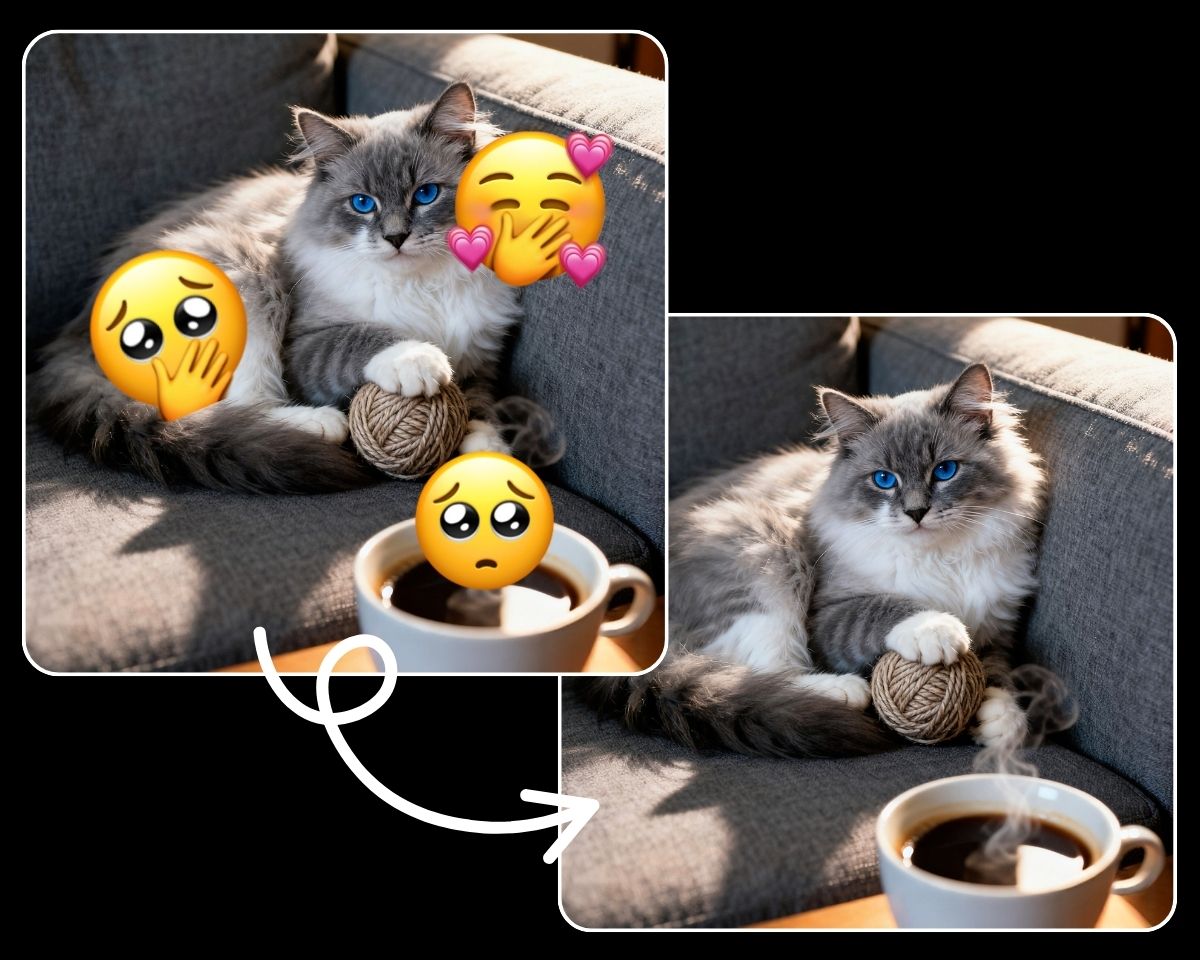
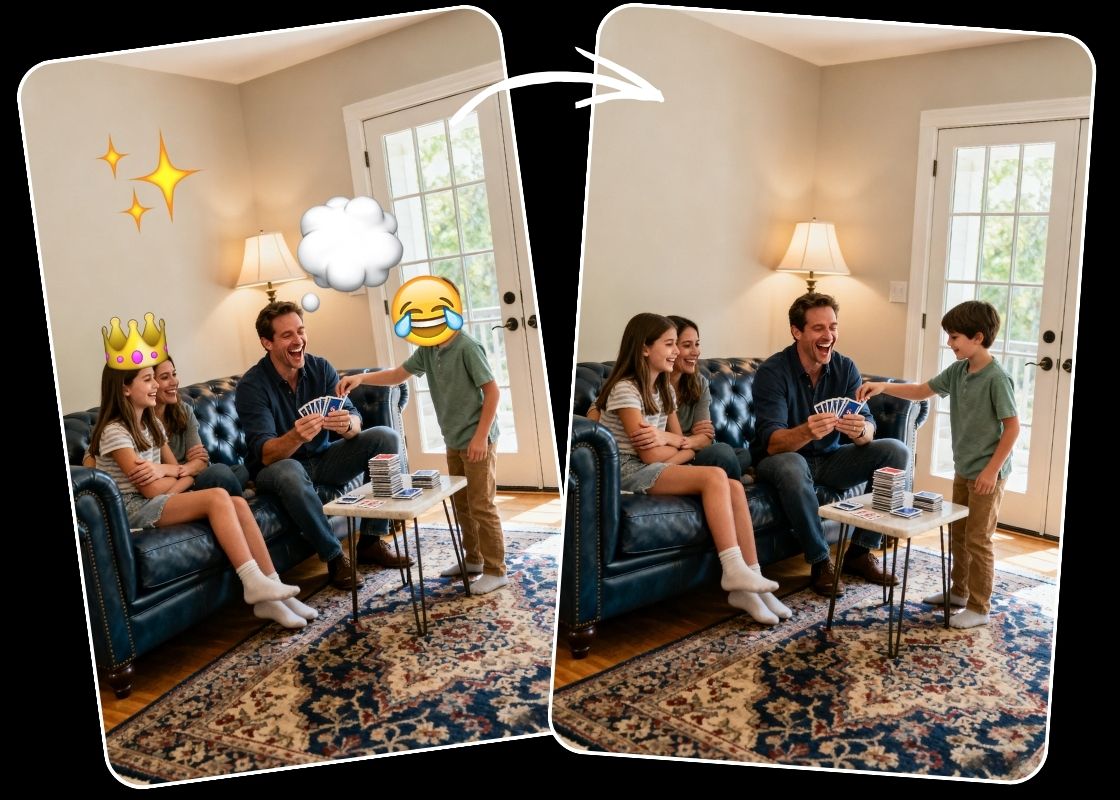
Two separate processes happen during removal. Understanding them helps you evaluate the edited image honestly.
You mark the complete emoji or review likely overlays detected by the editor when automatic mode is available.
PxBee clears the selected pixels and estimates a plausible replacement using nearby colors, shapes and texture.
Use the brush when the overlay sits near a face, product, label, hair or detailed edge—or when only one sticker should disappear.
When available, automatic detection can identify likely emoji and sticker regions. Detection depends on contrast, style, image size and compression.
Choose a clear JPG, JPEG, PNG or WebP image that you own or have permission to edit.
Use the brush for precise control or review automatic overlay detection when that option is available.
Cover the emoji, sticker, icon, outline, shadow and any decorative effects.
PxBee clears the selected pixels and creates a plausible replacement from nearby visual context.
Zoom in and check faces, product edges, hair, patterns, text and repeated lines for artifacts.
Use a smaller second pass if needed, then export only after reviewing the full image.
A precise selection reduces how much of the photo the model must invent.
A sticker is often larger than its solid center. Include the border, glow, shadow, sparkles and semi-transparent edges. If fragments remain, use a smaller second pass instead of widening the original mask across useful content.
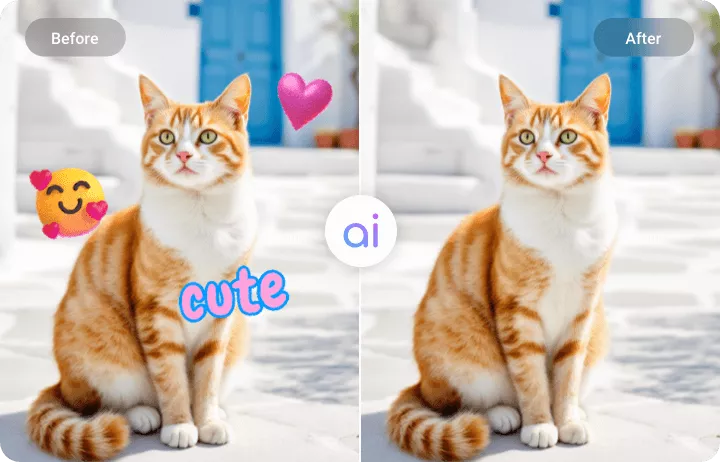
Plain walls, open sky, soft bokeh and large areas of consistent color give the model clear surrounding context. These are often better candidates than patterned clothing, faces or complex architecture.
Even on a simple area, review gradients, lighting direction and repeated texture for visible seams.
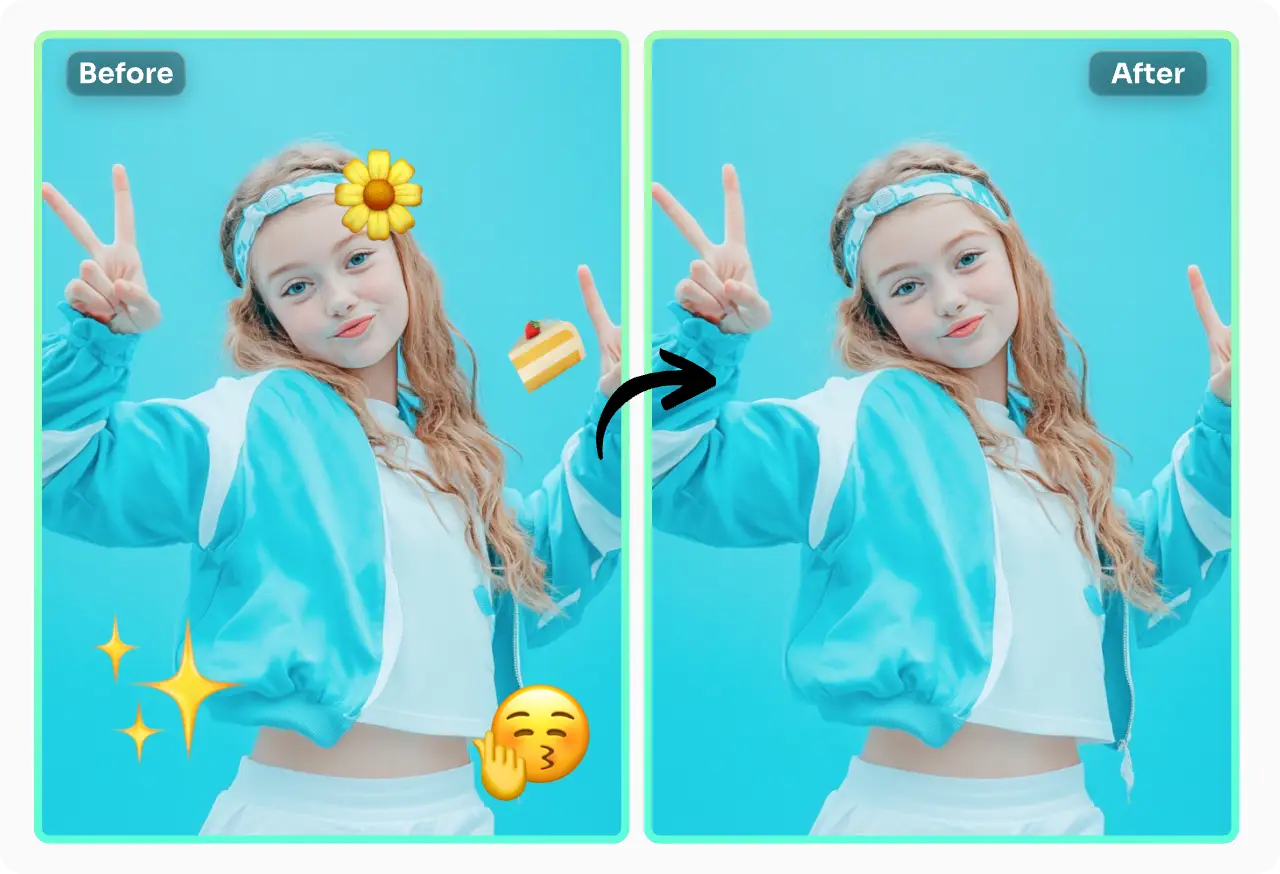
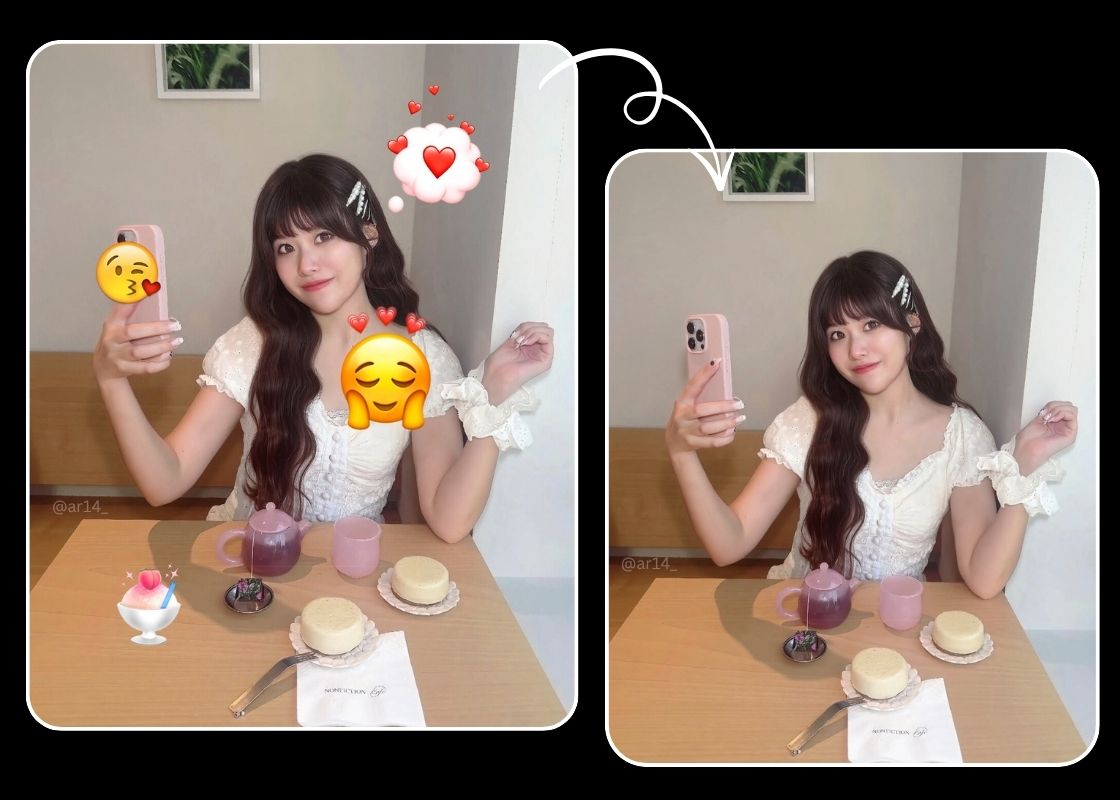
Clean an old reaction sticker, decorative icon or temporary graphic from a photo you created. Keep the original file so you can compare the edit and preserve authentic context.
Removing an overlay does not change copyright or personality rights. Permission still matters when other people appear in the image.
On an image you own, remove a temporary decorative sticker before building an updated campaign. Do not hide required warnings, product defects, labels, pricing conditions, certifications or material information.
For precise replacement with a specified object, use AI Replace. For a new scene behind the subject, use the Background Changer.
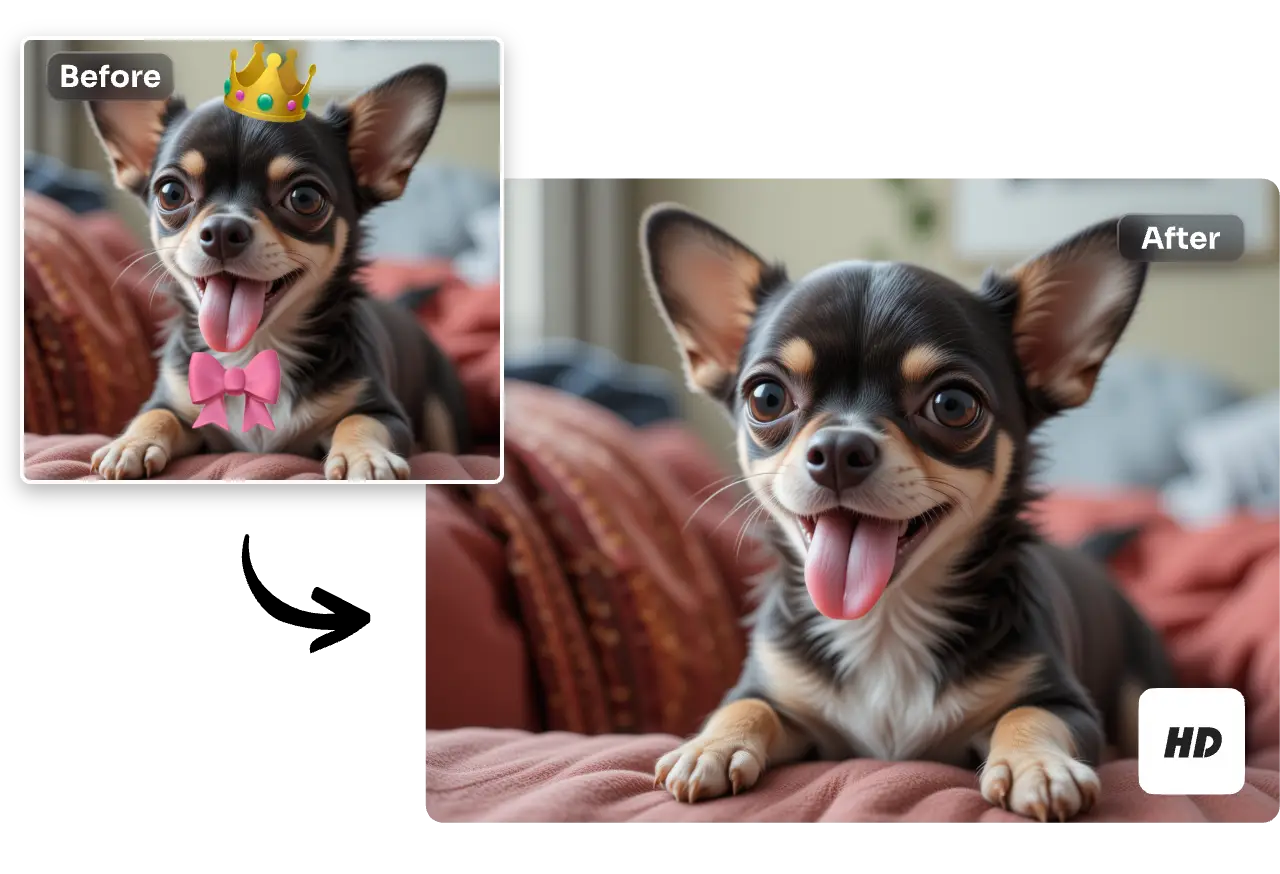
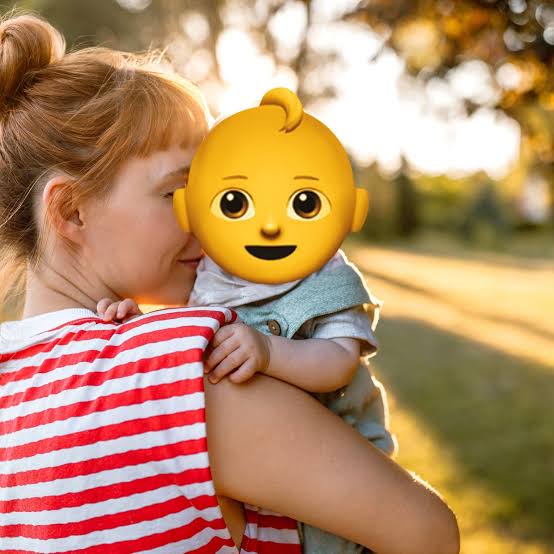
AI can create a plausible-looking face where an emoji covered one, but it cannot reveal the real hidden face. Eye shape, expression, skin details and other identity-specific features were never visible to the model.
Do not identify a person, make factual claims or present the generated result as authentic. For records, evidence, journalism, verification or identity-sensitive use, keep the original unchanged.
For personal albums, remove decorative overlays from images you own while preserving the unedited version. Pay close attention to hands, faces, clothing, table edges and objects that continue behind the sticker.
If the overlay hides a meaningful detail, label the result as edited rather than implying that it shows the original scene.
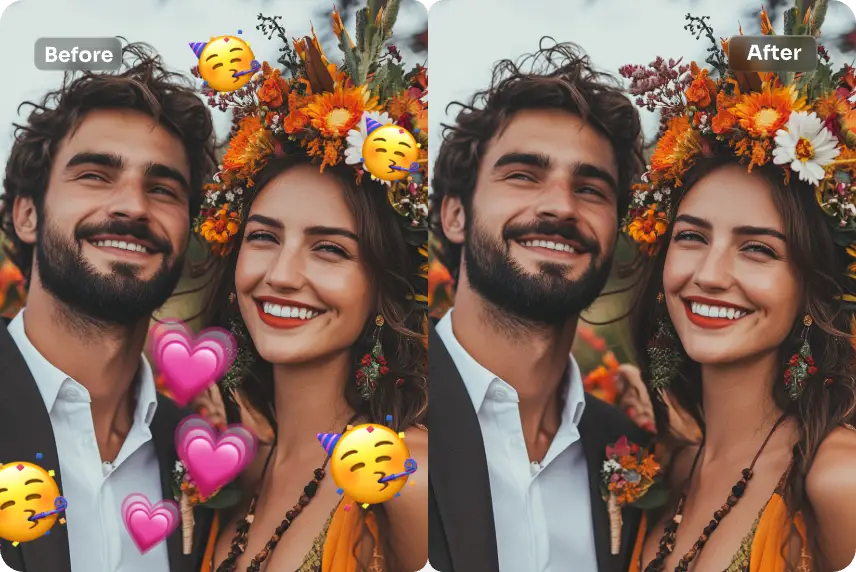
When several emojis appear in different parts of a photo, process them as separate groups. Start with the simplest region, inspect it, then continue to the next overlay.
This approach limits the area generated in each pass and makes it easier to undo or refine one problem without changing successful edits elsewhere.
The real hidden face is unavailable. Any result is an AI-generated estimate, not recovered identity.
Hair, fabric, brick, foliage and printed designs require consistent texture reconstruction.
Transparent pixels mix with the original scene and can leave color or edge traces.
Selecting only the solid icon can leave a visible halo after removal.
Screenshots and social downloads give the model less reliable detail to work with.
Straight lines, hands, product contours and architecture may need a careful second pass.
Process separate clusters one at a time so each reconstructed area is easier to review.
Automatic selection may include labels, logos or words that should remain visible.
Careful selection and honest inspection usually matter more than making a large mask.
A larger, cleaner source preserves more context around the overlay.
Manual selection gives better control around faces, products, text and edges.
Cover outlines, shadows, sparkles, glow and anti-aliased edges.
Smaller edits are easier to inspect than one oversized mask.
Look for repeated texture, smearing, broken lines or unnatural skin and hair.
Preserve the source when authenticity, ownership or future revisions matter.
Use AI Replace when you want a specific new object instead of an empty reconstruction.
Mark one emoji, sticker or icon without intentionally changing the full photo.
When supported, review likely overlays before allowing the edit.
PxBee estimates replacement pixels from nearby colors, shapes and textures.
Remove several separate overlays with controlled, reviewable passes.
Start from a desktop, tablet, iPhone or Android browser.
Upload JPG, JPEG, PNG or WebP images up to 20 MB.
| Editing goal | Recommended PxBee tool |
|---|---|
| Remove an emoji or sticker | Emoji Remover AI |
| Remove any selected object | Magic Eraser |
| Clear several kinds of clutter | Cleanup Pictures |
| Remove visible words | Remove Text From Image |
| Replace an emoji with a specified object | AI Replace |
| Add new visual content | AI Generative Fill |
| Remove the complete background | Background Remover |
| Remove an authorized watermark | Watermark Remover |
Edit only images you own or have permission to modify. Keep an original when authenticity, identity, evidence, product accuracy or legal compliance matters.
Read AI image editing limitations before using reconstructed content in sensitive contexts.
Upload your image, select the complete emoji or sticker and inspect every AI-reconstructed detail before downloading.
Only edit images you own or have permission to modify.