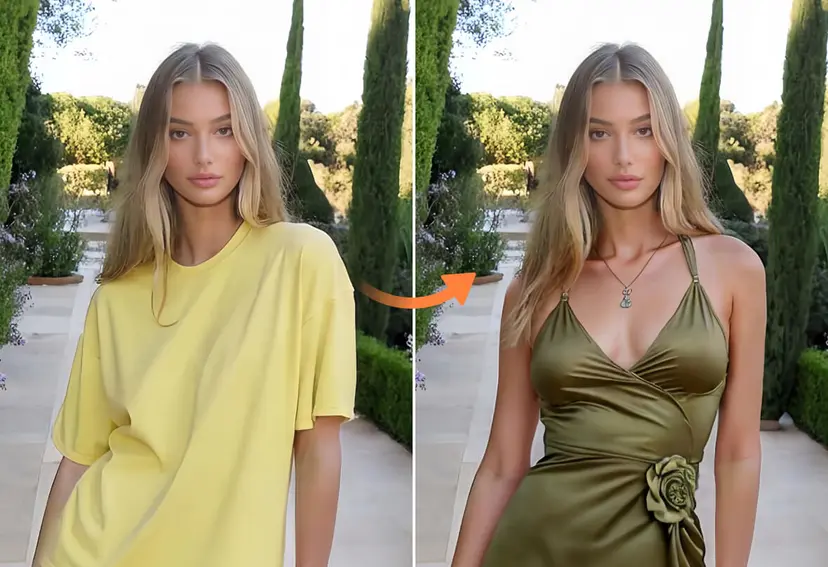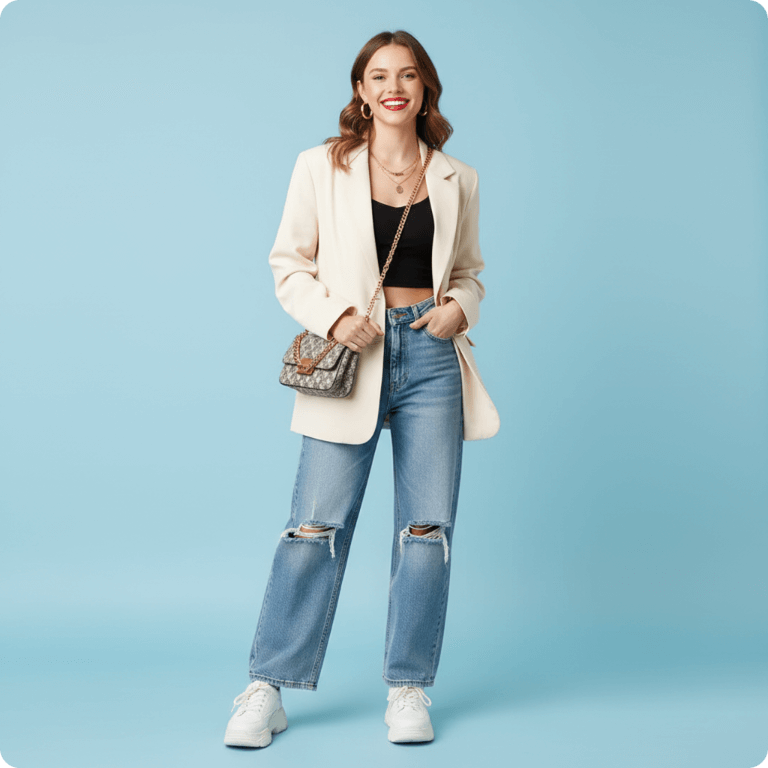
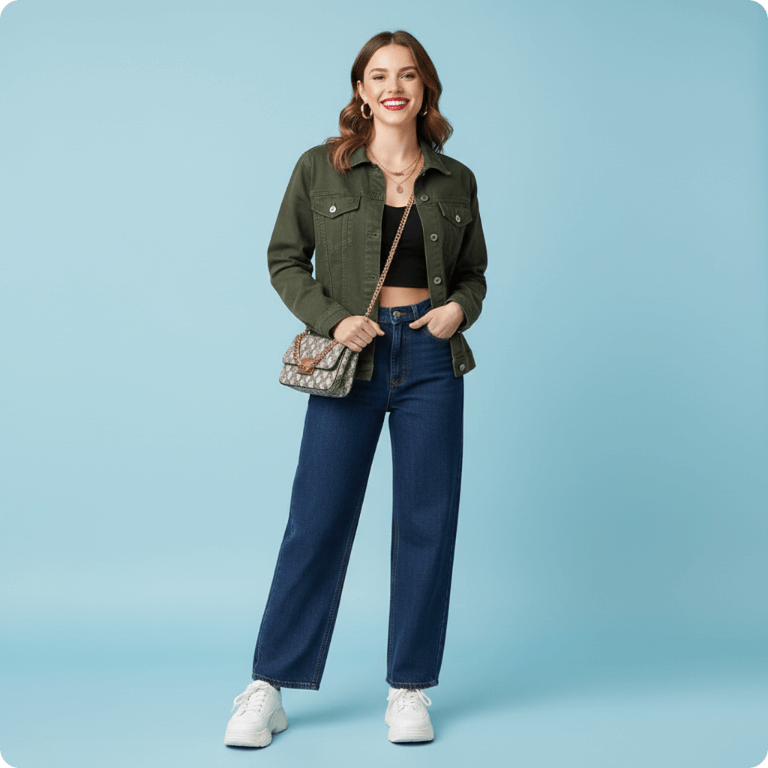
Choose a well-lit photo, mark only the clothing you want to replace, describe the garment, color, fabric and fit, then check hands, seams, body proportions and lighting before saving the result.
AI clothes changing replaces a selected garment or outfit in a photograph with newly generated clothing. Instead of manually combining several images, users can select the current clothes and describe a new visual direction.
This can help with:
Personal style exploration
Event outfit concepts
Professional portrait ideas
Travel planning
Creative photography
Fashion ideation
Internal campaign drafts
Appropriate editorial styling
The generated result is a visual concept. It is not proof that a real garment will have the same fit, color, material, or construction.
CTA: Change My Outfit
[Place the Clothes Changer AI editor or a prominent tool preview here]
Before You Start: Use a Photo You May Edit
Only upload:
Your own photo;
A portrait whose subject gave permission;
An image you have the legal right to modify; and
Appropriate, non-deceptive content.
Do not use the tool for:
Simulated undressing
Nudification
Sexualized edits
Non-consensual intimate imagery
Images of minors
Harassment or humiliation
Impersonation
Fraud or identity deception
Misleading product claims
Editing another person without permission
Consent should be required in the interface before upload or generation.
Choose the Right Source Photo
AI outfit generation works best when the original clothing and body position are clear.
Recommended input
Use a photo with:
One visible adult
Good, even lighting
A clear face
Visible shoulders and torso
Visible arms and hands
A simple pose
A clear clothing boundary
Minimal obstruction
Sufficient resolution
More difficult input
Results may be less consistent when the image contains:
Crossed arms
Hands inside pockets
Long hair covering clothing
Bags across the body
Multiple layered garments
Large necklaces or scarves
Loose or transparent fabric
Strong shadows
Motion blur
A seated or twisted pose
Several people
A cluttered background
How to Change Clothes in a Photo Online
Step 1: Open PxBee Clothes Changer AI
Go to the Clothes Changer AI.
The current tool supports:
JPG
JPEG
PNG
WebP
Step 2: Upload your portrait
Choose the clearest original file available rather than a screenshot or compressed thumbnail.
Use an image containing one adult with the current outfit clearly visible.
Step 3: Select the clothing
Brush over the garment or outfit that should change.
For a shirt or top
Include:
Collar
Sleeves
Torso
Visible hem
Areas around the arms
For trousers or a skirt
Include:
Waist
Legs
Visible hem
Areas around hands and bags
For a dress or full outfit
Include the complete garment while carefully avoiding skin, hair, and background areas.
Use a smaller brush around:
Fingers
Hands
Neck
Hair
Jewelry
Belts
Bags
Shoes
Foreground objects
Step 4: Write the outfit prompt
A useful prompt includes:
Garment type
Main color
Material
Silhouette
Sleeve or leg length
Layers
Occasion
General finish
Example:
Tailored navy business suit, white dress shirt, subtle wool texture, professional silhouette, natural folds and shadows.
Step 5: Generate the new clothes
Select Generate.
AI interprets the portrait, selected region, and written description to produce a new outfit concept.
Different generations can produce different:
Folds
Buttons
Sleeves
Materials
Patterns
Shadows
Accessories
Garment boundaries
Step 6: Inspect the result
Zoom in and review:
Face consistency
Hands and fingers
Arm positions
Neckline
Hair boundaries
Garment edges
Fabric texture
Buttons and zippers
Pockets
Patterns
Logos and text
Shadows
Accessories
Background areas
Step 7: Download or try another prompt
Download the result only when it is suitable for the intended creative use.
If the output is inconsistent:
Refine the selected area.
Simplify the prompt.
Generate one garment at a time.
Choose a clearer portrait.
Try a different outfit silhouette.
Generate another version.
CTA: Change Clothes With PxBee
AI Clothes Changer Prompts You Can Copy
Professional suit
Tailored navy business suit, crisp white dress shirt, subtle wool texture, professional silhouette, natural folds and shadows.
Business-casual outfit
Light beige blazer over a pale blue shirt, tailored charcoal trousers, modern business-casual styling, realistic fabric texture.
Casual hoodie
Oversized charcoal hoodie, heavy cotton texture, relaxed fit, minimal design, natural folds and soft shadows.
Denim jacket
Classic medium-blue denim jacket, visible seam details, silver buttons, slightly relaxed fit, realistic denim texture.
Summer outfit
Lightweight white linen shirt with rolled sleeves, relaxed tan trousers, breathable summer styling, natural daylight.
Formal evening dress
Elegant floor-length emerald green evening dress, modest neckline, flowing fabric, subtle satin finish, realistic folds.
Fall outfit
Warm camel wool coat over a cream ribbed sweater, tailored silhouette, subtle layered styling, natural autumn color palette.
Streetwear
Relaxed black bomber jacket over a plain white shirt, dark cargo trousers, minimalist modern streetwear, realistic fabric.
Creative editorial fashion
Futuristic silver structured jacket, matte metallic material, clean geometric panels, high-fashion editorial styling.
Travel outfit
Comfortable lightweight utility jacket, neutral cotton shirt, relaxed dark trousers, practical modern travel style.
Keep prompts appropriate for the visible person and intended context.
How to Write Better Outfit Prompts
Name the garment
Use “tailored blazer” instead of “nice clothes.”
Choose a clear color
Use navy blue, warm beige, forest green, charcoal gray, or another specific color.
Describe the material
Examples include:
Cotton
Linen
Wool
Denim
Knit
Satin
Leather
Velvet
Chiffon
AI-generated texture is approximate and does not verify a real material.
Add the silhouette
Useful visual terms include:
Tailored
Relaxed
Oversized
Cropped
Straight-leg
Flowing
Structured
Slim
Ankle-length
These are visual instructions, not size or fit predictions.
State the occasion
Examples:
Business meeting
Wedding guest
Summer travel
Formal dinner
Casual weekend
Editorial fashion
Professional profile
Avoid exact text and logos
Generative image tools frequently distort:
Brand logos
Printed words
Product labels
Numbers
Fine patterns
Small symbols
Add accurate branded elements afterward using a suitable design tool.
Change the Full Outfit or Only Its Color?
Use the Clothes Changer AI when the garment type, silhouette, material, or complete outfit should change.
Use the AI Color Replacer when:
The garment should stay the same.
Only its visible color should change.
The current folds and shape should remain.
You are testing color directions rather than new clothing.
Add Accessories With Generative Fill
Use AI Generative Fill for smaller additions such as:
Appropriate jewelry
A scarf
A hat
A belt
A tie
A bag
Decorative fashion elements
Generate one accessory at a time and inspect its scale, placement, shadows, and interaction with the body.
Outfit Visualization Is Not Real Fit
PxBee can generate a picture suggesting how an outfit style might look. It cannot reliably determine:
Clothing size
Body measurements
Physical comfort
Tightness
Fabric stretch
Mobility
Brand-specific sizing
Exact drape
Construction quality
Real-world color
How the garment feels
How it behaves while moving
Before buying clothes, review:
The retailer’s size chart
Garment measurements
Material composition
Stretch information
Model measurements
Customer reviews
Return policy
Care instructions
Do not use an AI-generated outfit as the only basis for a purchasing or sizing decision.
Changing Clothes for Professional Photos
AI outfit changes can help create an early visual concept for:
Professional profile portraits
Team-page drafts
Speaker biographies
Conference profiles
Internal presentation mockups
Before professional publication, confirm that:
The portrait still represents the real person.
The clothing is appropriate and believable.
Hands and face remain accurate.
No false uniform, credential, badge, or affiliation was generated.
The edit is disclosed where it could mislead viewers.
Do not generate medical, military, law-enforcement, academic, corporate, or official uniforms that falsely imply credentials or authority.
Changing Clothes for E-Commerce Images
A prompt-generated outfit is not necessarily an exact real product.
Before using the result commercially, verify:
Garment shape
Material
Color
Pattern
Stitching
Buttons
Pockets
Zippers
Accessories
Logo placement
Available sizes
Included items
Do not advertise a generated garment as a real product unless the final image accurately represents the item being sold.
Prepare a Cleaner Portrait Background
After generating the outfit, the background may also need improvement.
Use:
-
to isolate the subject.
[Transparent Background
Maker](https://pxbeeai.com/background-remover/transparent/) for a transparent cutout.
-
to prepare a reusable PNG.
-
to add a new setting.
[AI Background
Generator](https://pxbeeai.com/background-remover/ai-background-generator/) to generate an appropriate scene.
[White Background
Remover](https://pxbeeai.com/background-remover/white/) when cleaning a white source background.
[Black Background
Remover](https://pxbeeai.com/background-remover/remove-black-background/) when removing black around the portrait.
Choose a background whose lighting and perspective match the generated outfit.
Other PxBee Background Tools
For separate brand and document assets:
Use the [Logo Background
Remover](https://pxbeeai.com/background-remover/logo/) for authorized logos.
Use the [Signature Background
Remover](https://pxbeeai.com/background-remover/signature/) for a signature you own or may process.
These tools serve different intents and should not be described as part of the clothes-changing workflow.
Common AI Clothes-Changing Problems
The face changed
The selection may be too close to the face or the generation may have affected nearby pixels.
Try:
Reducing the selected area.
Keeping the brush away from the face.
Using a clearer source photo.
Simplifying the outfit prompt.
Hands look distorted
Hands crossing the outfit can be regenerated incorrectly.
Use a source photo with arms relaxed and hands clearly separated from the clothing.
Hair disappears into the outfit
Long hair may overlap the selected garment.
Use a smaller brush near the hair or choose an image where the hair is positioned behind the shoulders.
The outfit looks painted on
Possible causes include:
Vague prompt
Incomplete clothing selection
Complex pose
Mismatched lighting
Very low-resolution source
Too many requested garments
Use a clearer prompt with material, silhouette, and lighting details.
Buttons, pockets, or patterns are inconsistent
AI may create asymmetrical or impossible garment details. Generate another version or correct the image in a professional editor.
Clothing crosses the background
The selected area may include background pixels. Refine the mask around the body.
The body shape changed
Generative replacement can alter nearby contours. Compare the result with the original and reject outputs that materially distort the subject.
Text or logos are unreadable
AI-generated text is often inaccurate. Add exact text and approved logos afterward.
Consent, Safety, and Dignity
Do not use AI clothes changing to:
Remove clothing
Simulate nudity
Create sexualized content
Create non-consensual intimate imagery
Alter images of minors
Harass or humiliate someone
Impersonate another person
Create deceptive dating profiles
Falsely imply employment, credentials, or authority
Misrepresent a product
Edit someone without permission
PxBee should enforce these requirements through image checks, prompt moderation, reporting, and account or device-level abuse controls—not only written warnings.
Final Outfit-Change Checklist
Before downloading, confirm:
The image subject gave permission.
The source photo is authorized.
The face remains consistent.
Hands and fingers look natural.
Body boundaries have not been distorted.
Hair and accessories remain intact.
Clothing edges are clean.
Fabric and folds look plausible.
Buttons, pockets, and patterns are consistent.
Text and logos are accurate or removed.
Shadows match the source lighting.
The output is treated as a concept, not exact fit.
The edit is disclosed if viewers could be misled.
The original image is safely preserved.
Change Clothes in Your Photo With PxBee
Upload an authorized adult portrait, select the current outfit, describe the new clothing, and generate a virtual styling concept online.
Primary CTA: Change My Outfit Free