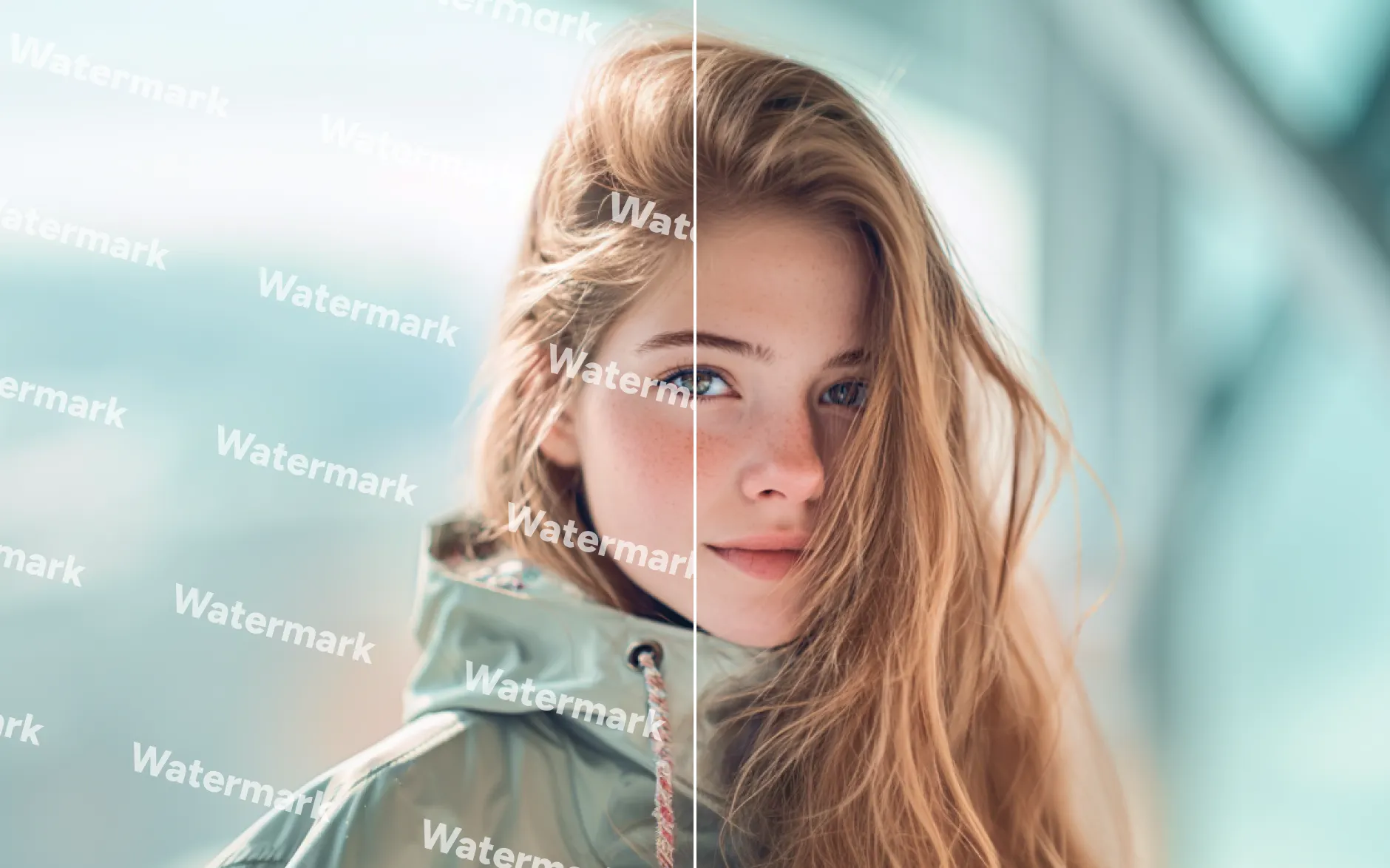
Your own watermark
Clean an old exported copy when the original unwatermarked version is unavailable.
Clean an authorized watermark, self-added logo, date stamp or draft mark. PxBee combines automatic detection, an adjustable brush and AI inpainting to rebuild the selected area.
Use this tool only with images you own or have permission to edit.
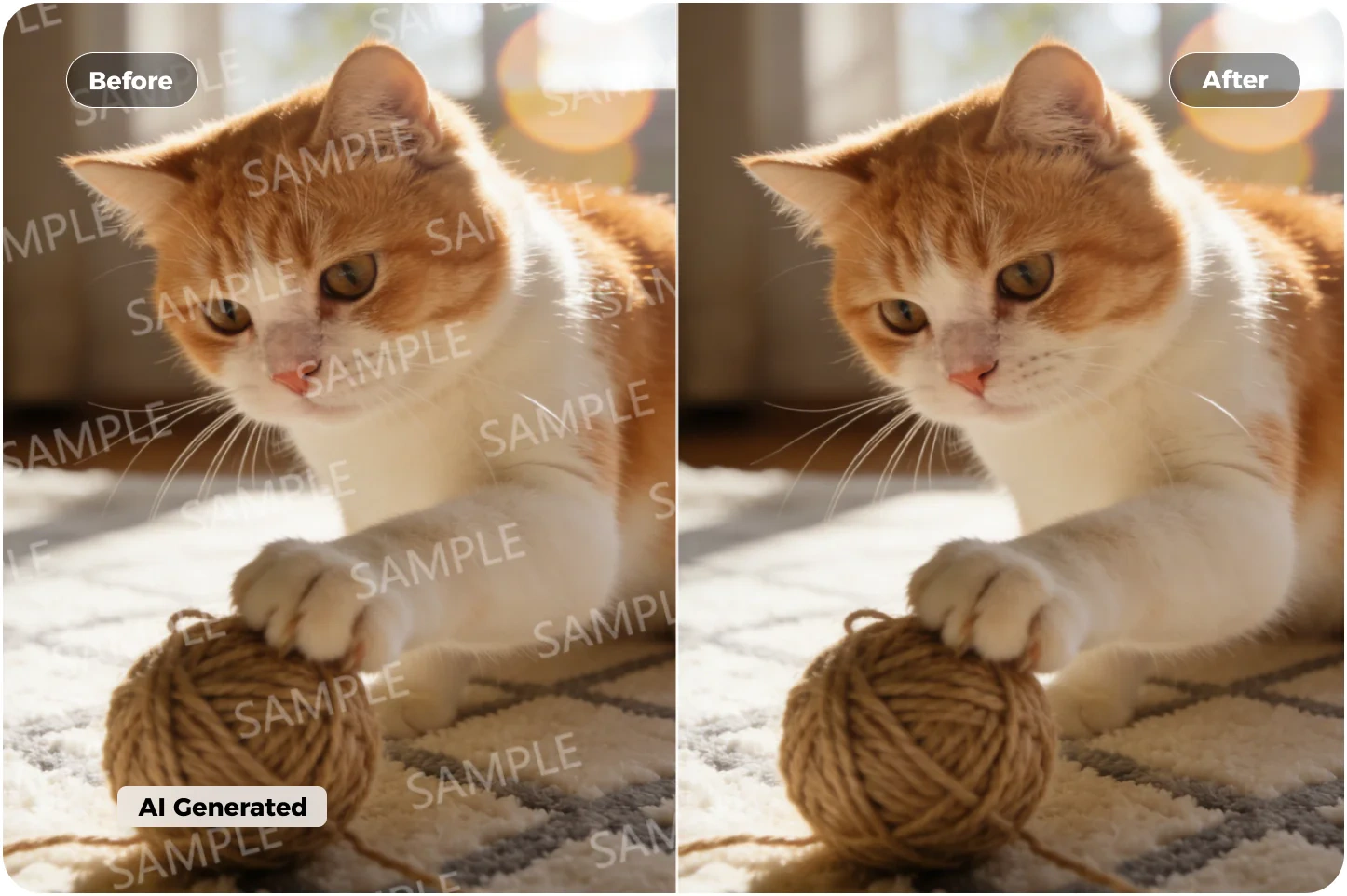
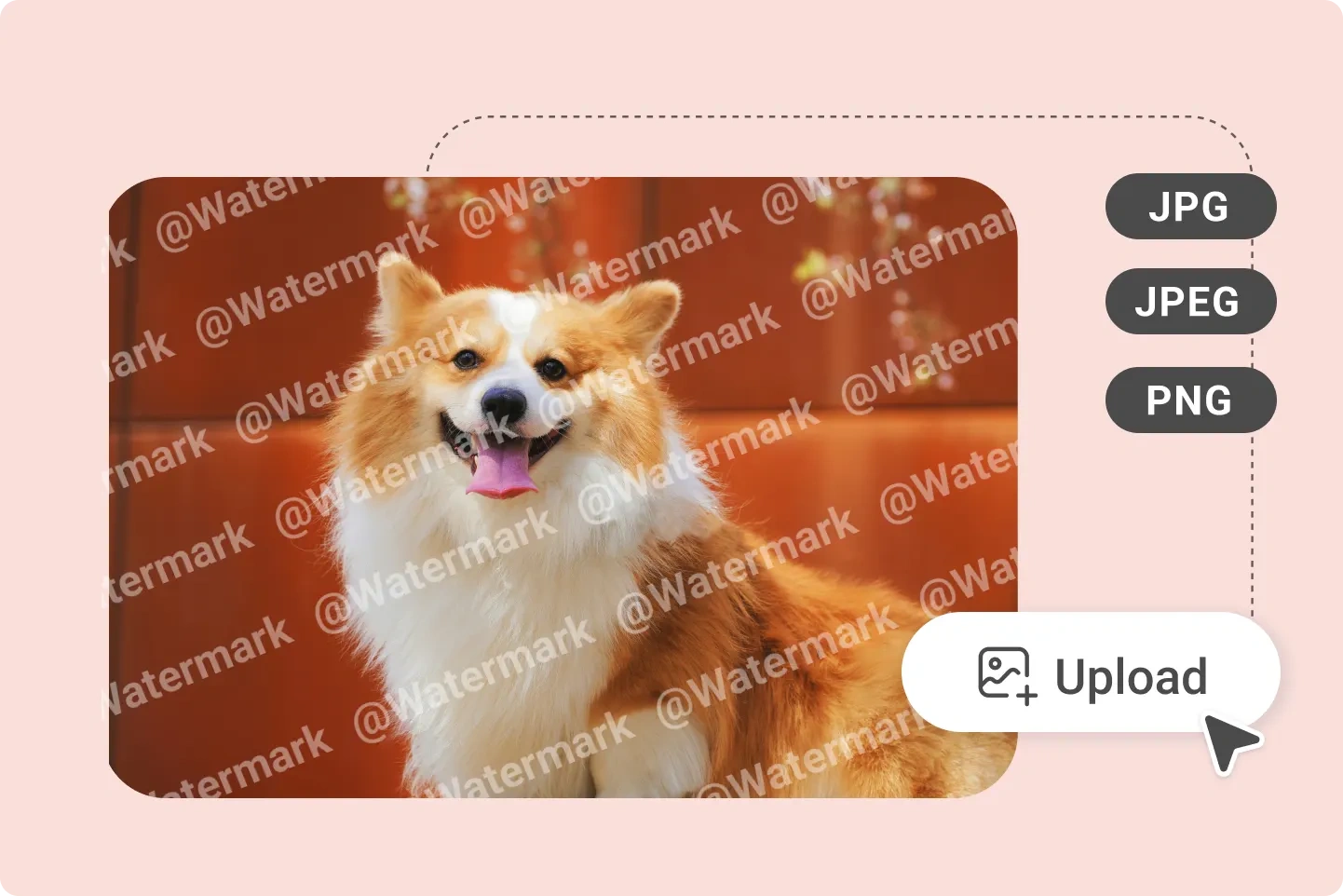
Watermarks and overlays can cross colors, patterns, objects and detailed backgrounds. Simply blurring the area often leaves a visible patch.
PxBee analyzes the surrounding image and generates replacement content for the selected region. Use automatic detection for a clear overlay or paint over the mark with the manual brush.
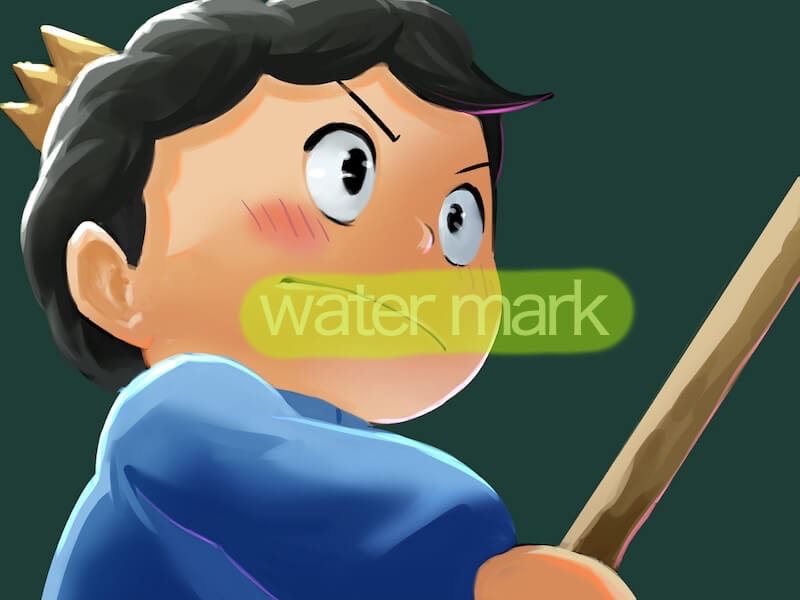

Clean an old exported copy when the original unwatermarked version is unavailable.
Update a marketing image owned by your organization by removing an old self-added brand mark.
Remove a date or time overlay from a personal photograph.
Try Stamp Remover →Clean a proof or internal design after receiving approval to use the final asset.
If the text is not a rights or ownership mark, use the focused text-removal workflow.
Remove Text From Image →A watermark may identify the creator, copyright owner, license, source or permitted use. Removing it does not give you ownership or permission to republish the content.
Confirm that you created or own the image, the rights holder authorized the edit, the license permits the change, or another valid legal basis applies.
The U.S. Copyright Office permission guidance recommends obtaining permission in cases of doubt.
PxBee looks for likely text, logo or overlay regions, working best when the mark differs clearly from the background.
Paint over the mark when detection misses part of it or selects too much.
The AI uses nearby colors, textures, edges and patterns to generate replacement content.
Compare the processed area and refine the selection when an edge, shadow or fragment remains.
Only upload an image that you are authorized to modify.
Select a JPG, JPEG, PNG or WebP file.
Use automatic detection or brush over the complete mark.
Select Remove and let PxBee generate replacement content.
Zoom in to check texture, straight lines, text, faces, hands, product labels and important details.
Save the result only when it looks suitable and your intended use complies with the image rights and license.

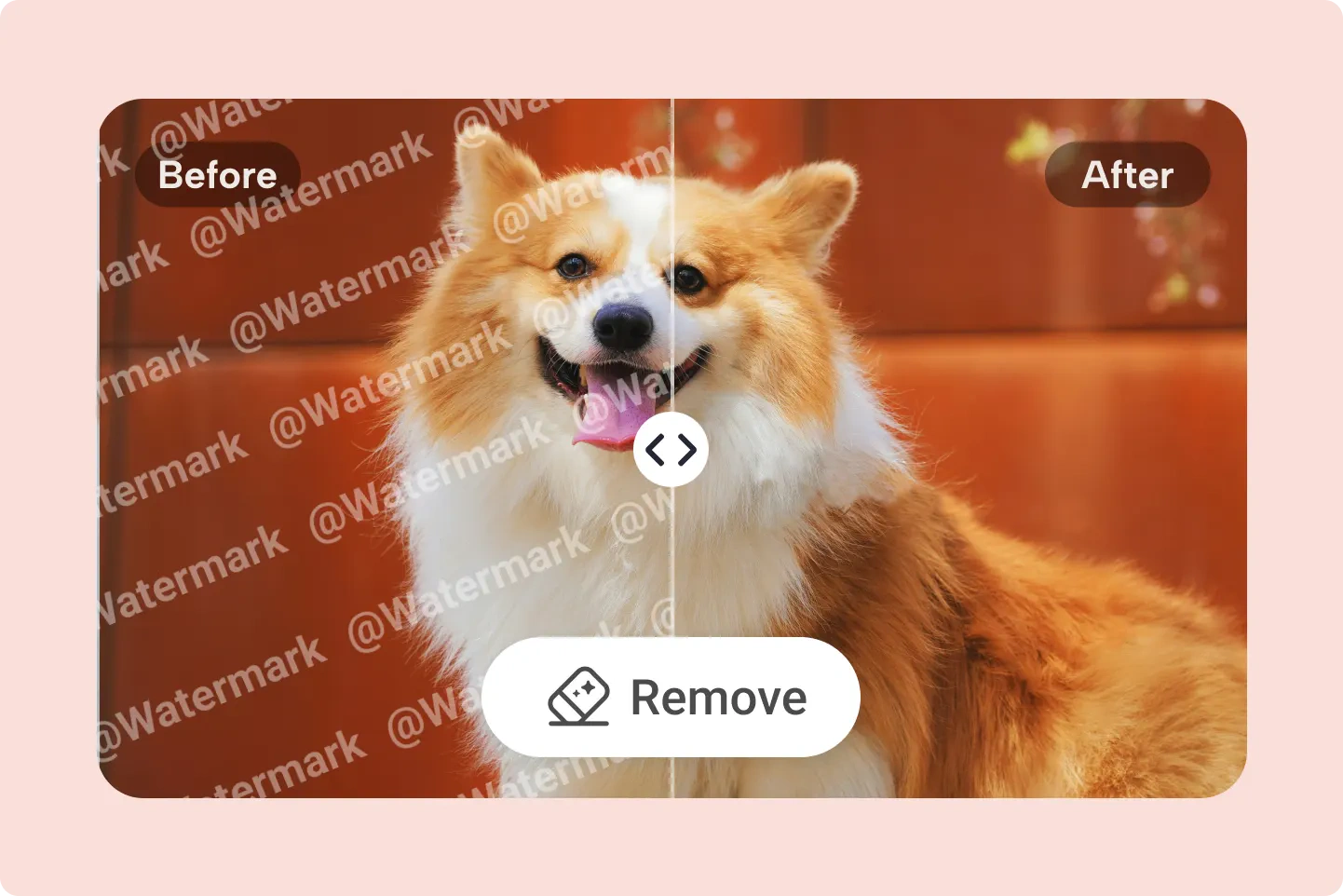

Start with detection for a simple mark and switch to a precise brush when the overlay crosses detail.
| Image condition | Recommended method |
|---|---|
| Small, clear text overlay | Try automatic detection |
| Transparent logo | Use the brush for precise coverage |
| Irregular signature or mark | Use the manual brush |
| Tiled overlay | Process carefully in sections |
| Mark crossing a face or product | Use a small brush and inspect closely |
| Large mark over complex detail | Obtain the clean original when possible |
Precise masks and high-quality source files give the reconstruction more useful context.
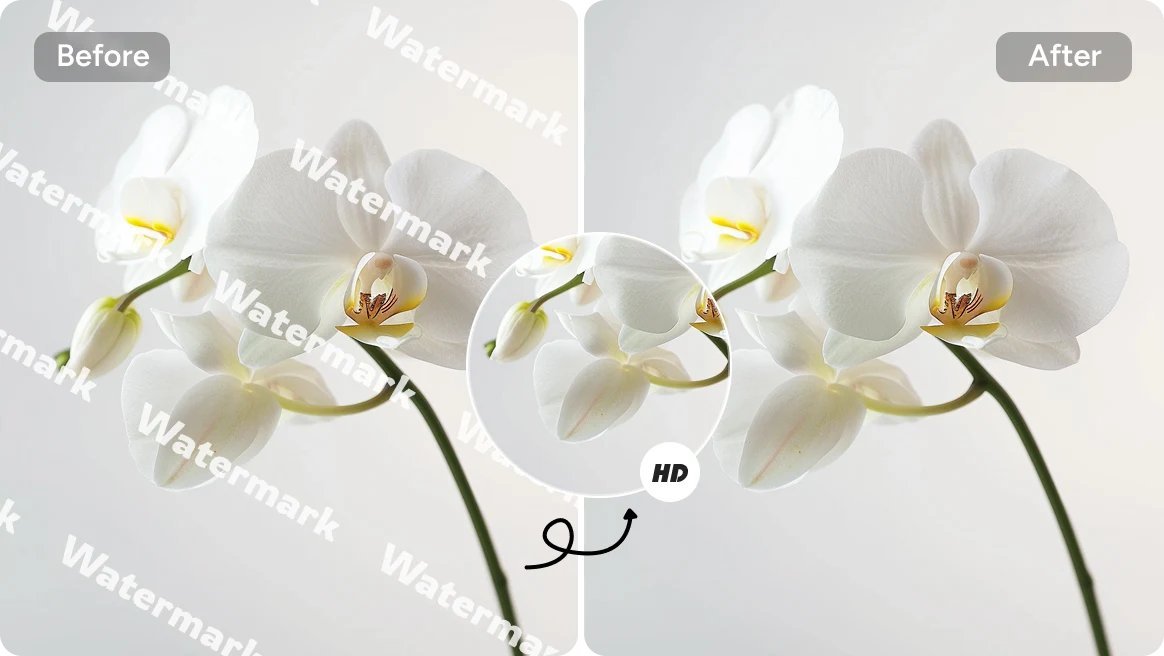
Higher-resolution files provide more surrounding detail for the AI to analyze.
Include faint edges, shadows, outlines and transparent portions in the selection.
Selecting too much forces the AI to invent more content.
Apply a second pass to small fragments instead of reprocessing the entire area.
Ensure the edit has not changed a product, label, document, face, property feature or other important information.
Retain the unedited version for ownership records, comparison and future work.
Start with detection and use a brush when precision is needed.
Complete the workflow in a modern desktop or mobile browser.
Process JPG, JPEG, PNG and WebP images.
Fill selected areas from surrounding visual information instead of applying a simple blur.
Removal is most difficult when a mark covers a face, hand or detailed object; crosses text, labels or straight lines; repeats across the image; is large or highly opaque; covers a compressed source; or conceals information that cannot be inferred.
AI may generate convincing but incorrect details. Review AI Image Editing Limitations before commercial, documentary, legal or factual use.
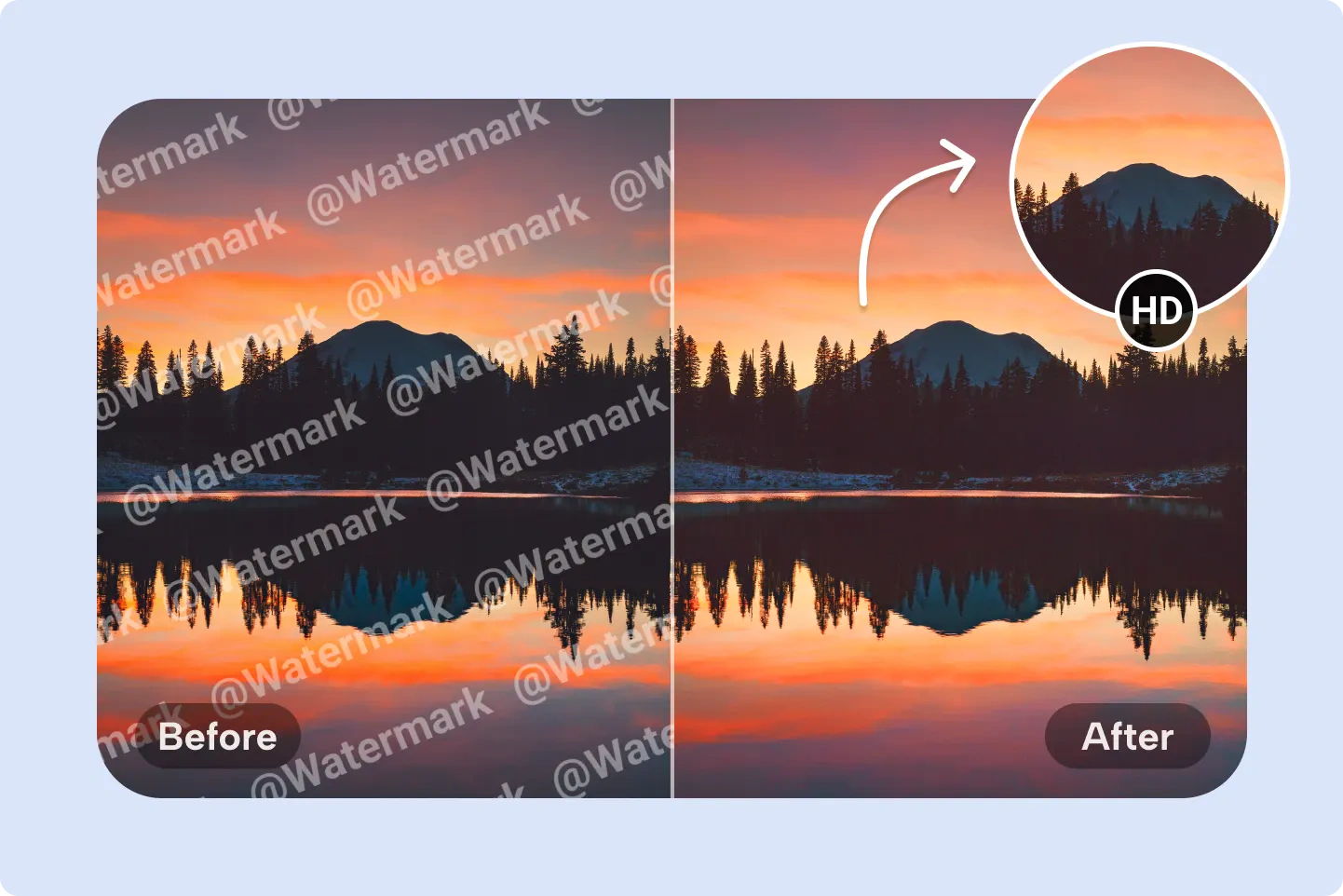
Upload your own image, select the mark and let PxBee reconstruct the surrounding area.
JPG, JPEG, PNG and WebP supported