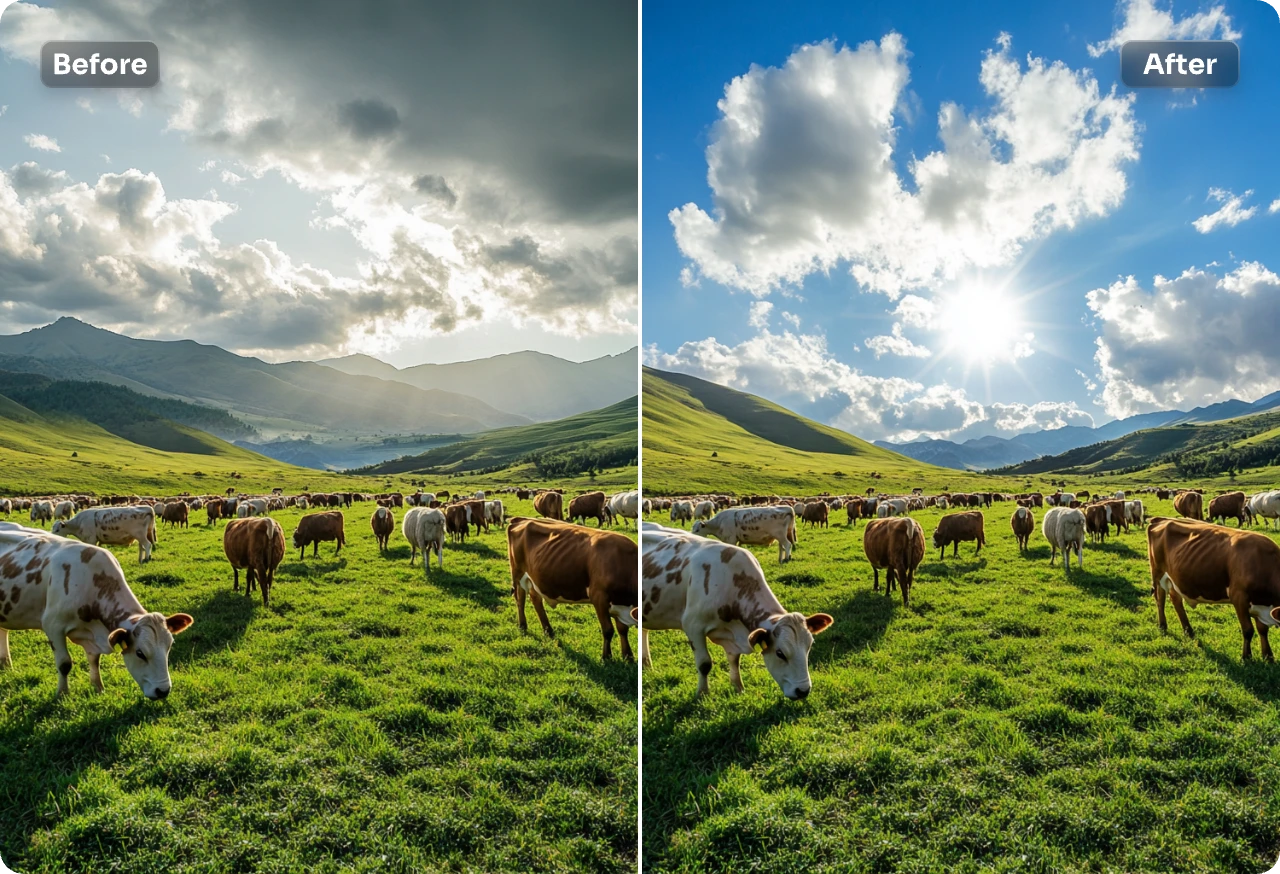

Upload a clear photo, select the existing sky, describe the replacement by time of day, cloud type and color, then review the horizon, reflections, shadows and overall color before downloading.
A sky can affect the color, light, depth, and mood of an outdoor image. A flat white sky may make a landscape feel unfinished, while a dramatic sunset can look artificial when it conflicts with the foreground.
A convincing sky replacement requires more than generating attractive clouds. The new sky should agree with the original photograph’s:
Time of day
Light direction
Brightness
Color temperature
Horizon
Perspective
Shadows
Reflections
Depth of field
Weather conditions
This guide explains how to replace the sky with PxBee and how to review the result before publishing it.
CTA: Change My Photo Sky
[Place the Sky Replacement AI editor or a prominent preview here]
When Should You Change a Photo Sky?
Sky replacement can be useful when the original sky is:
Overexposed and almost white
Flat or lacking visible detail
Distracting from the subject
Poorly balanced with the composition
A temporary placeholder in a creative mockup
Unsuitable for an intentionally fictional campaign
Being tested in an alternate artistic version
Replacing a sky is less appropriate when the photograph is expected to document actual conditions, such as:
Journalism
Legal evidence
Insurance documentation
Scientific records
Historical archives
Weather documentation
Property-condition evidence
Before-and-after proof
If the edit changes the meaning of the photograph, disclose it.
Before You Start: Choose a Compatible Sky
The most attractive sky is not always the most believable one.
Use the source image’s foreground to guide your decision.
| Original foreground | More compatible replacement |
|---|---|
| Bright midday light | Blue or partly cloudy daylight |
| Soft, shadowless light | Overcast or diffused cloudy sky |
| Warm side lighting | Golden-hour or sunset sky |
| Cool low light | Twilight or blue-hour sky |
| Long directional shadows | Low sun in the matching direction |
| Wet ground or visible water | Sky that can be reflected consistently |
| Hazy distant landscape | Sky with subtle horizon haze |
| Sharp foreground with deep focus | Detailed sky with compatible focus |
Avoid placing a dark storm sky over a brightly lit foreground unless you intentionally want a surreal result.
How to Change the Sky in a Photo Online
Step 1: Open PxBee Sky Replacement AI
Go to Sky Replacement AI.
The current tool supports:
JPG
JPEG
PNG
WebP
Step 2: Upload the original image
Choose the highest-quality source available.
A useful input typically has:
A visible sky
A clear foreground
A recognizable horizon or boundary
Sufficient image resolution
No severe motion blur
Lighting that can be matched to a replacement
Step 3: Select the complete sky
Use the brush to cover the original sky.
Pay attention to sky visible:
Between tree branches
Around hair
Between railings
Through arches
Between buildings
Behind wires
Through windows
Around mountains
Inside open structures
Use a smaller brush near these areas. Selecting too much foreground can cause buildings, trees, people, or objects to change.
Step 4: Write a sky prompt
Describe what should appear rather than writing a general request such as “make this better.”
Include:
Time of day
Main sky color
Cloud type
Cloud coverage
Light quality
Horizon conditions
Desired realism
Example:
Natural light blue daytime sky, scattered soft white clouds, even daylight, subtle atmospheric haze near the horizon, realistic photography.
Step 5: Generate the replacement
Select Generate and wait for the new version.
Generative results can vary, so the first output may not be the best match.
Step 6: Inspect the edge mask
Zoom in and check:
Tree branches
Leaves
Hair
Rooflines
Antennas
Power lines
Mountain ridges
Fences
Glass
Fine architectural details
Look for:
Bright halos
Dark outlines
Missing branches
Sky covering foreground objects
Fragments of the original sky
Unnaturally hard boundaries
Step 7: Review foreground lighting
The sky is a major light source. A replacement may affect how viewers expect the complete scene to be illuminated.
Check:
Direction of shadows
Brightness of faces and objects
Warm or cool color cast
Highlights on buildings
Rim light around people
Contrast between foreground and sky
Sun position
Shadow length
Adobe’s current Sky Replacement workflow includes controls for foreground lighting, edge lighting, brightness, temperature, and color adjustment, showing why these details matter in a believable composite. Adobe Sky Replacement guide
Step 8: Check reflections
Review:
Lakes
Rivers
Pools
Windows
Vehicle paint
Polished metal
Glass products
Wet streets
Sunglasses
A sunset sky above a lake should not leave a blue midday reflection below it.
PxBee does not currently document automatic reflection replacement. Choose a source without prominent reflections when you need the simplest workflow.
Step 9: Download or revise
Download the result only after the complete image looks consistent.
If it does not:
Choose a subtler sky.
Refine the selected area.
Adjust the prompt.
Match the original time of day.
Generate another version.
Use a professional editor for detailed lighting or reflection work.
CTA: Replace the Sky With PxBee
Copy-Ready Sky Replacement Prompts
Natural blue sky
Natural light blue daytime sky, scattered soft white clouds, even daylight, subtle atmospheric haze near the horizon, realistic photography.
Bright partly cloudy sky
Bright blue sky with light cumulus clouds, moderate cloud coverage, soft midday sunlight, natural horizon haze.
Soft overcast sky
Soft pale gray overcast sky, diffused light, gentle cloud texture, low contrast, realistic weather photography.
Golden-hour sky
Warm golden-hour sky, low sun near the horizon, soft orange and pale blue gradient, thin natural clouds, realistic warm light.
Subtle sunset
Natural pastel sunset, soft peach and pink clouds, warm light near the horizon, realistic color intensity, no extreme saturation.
Blue-hour sky
Deep blue twilight sky, subtle remaining glow at the horizon, thin cloud texture, cool low-light atmosphere.
Dramatic clouds
Layered dramatic storm clouds, realistic gray tones, visible cloud depth, soft light breaking through, natural landscape photography.
Starry creative sky
Dark clear night sky with subtle stars, faint atmospheric glow near the horizon, realistic low-light appearance.
Use dramatic, night, aurora, or fantasy prompts only when the intended result is clearly creative.
How to Make a Sky Replacement Look Natural
Match the brightness
A very bright sky over a dark foreground can create an unnatural exposure mismatch.
Match the temperature
A warm sky should normally create some warm influence on the landscape. A cold blue sky should not sit over a strongly orange foreground without a logical light source.
Match the sun direction
If the generated sun is on the left, highlights and shadows should not indicate strong sunlight from the right.
Match cloud scale
Large, sharply detailed clouds near a distant horizon can make the sky appear too close.
Add atmospheric haze
Distant skies generally become softer and less contrasty near the horizon.
Match the focus
A highly detailed sky can look pasted behind a softly focused portrait. The sky’s sharpness should fit the image’s depth of field.
Keep colors restrained
Overly saturated blue, orange, or purple skies often reveal the edit.
Preserve edge softness
Distant mountains, trees, and buildings should not have an unnaturally sharp cutout against atmospheric sky.
Changing Different Types of Photo Skies
Landscape photography
Landscapes often contain a large sky area and clear horizon, making them suitable candidates.
Check:
Horizon position
Cloud scale
Mountain haze
Sun direction
Water reflections
Vegetation lighting
Travel photos
A subtle sky replacement can improve an alternate artistic version of a travel image.
Keep the original when the image is intended to document actual weather, time, or conditions.
Outdoor portraits
Pay particular attention to:
Hair
Hats
Shoulders
Glasses
Rim lighting
Skin color
Depth of field
A detailed sunset behind a softly lit portrait may require foreground color adjustment.
Wedding photography
Create the sky-edited image as an artistic alternative, not the only copy of an important event photo.
Keep the documentary original and ensure that the replacement fits the real lighting.
Architecture
Buildings provide clear boundaries but may contain:
Antennas
Railings
Glass
Fine roof details
Reflections
Repeating windows
Straight lines
Inspect these areas at full size.
Real-estate photography
A natural blue-sky alternative may improve presentation, but it must not misrepresent:
The property
The actual view
Nearby buildings
Seasonal conditions
Environmental risks
Material surroundings
Property boundaries
Follow the applicable local MLS, brokerage, advertising-platform, and legal requirements. Disclose material visual changes where required.
Product photography
An outdoor product campaign may support a replaced sky, but check:
Product reflections
Packaging colors
Labels
Material finish
Contact shadows
Light direction
Product accuracy
Do not let the generated edit alter the real product.
Sky Replacement vs Background Replacement
Sky replacement changes only the sky region while preserving the foreground and much of the original environment.
Background replacement changes the broader scene behind a subject.
Use Background Changer when:
The entire setting should change.
The original landscape is unsuitable.
The subject needs a studio, office, interior, or lifestyle scene.
There is no meaningful foreground environment to preserve.
Use AI Background Generator when you want to create a new scene from a prompt.
How to Remove a Sky Completely
If you need transparency rather than a new sky:
Open the [Background
Remover](https://pxbeeai.com/background-remover/).
Remove the existing background or sky.
Inspect detailed boundaries.
Keep the result transparent.
Download as PNG.
Use the Transparent Background Maker or PNG Maker for a focused transparent-output workflow.
If the source has a simple white or black background, try the White Background Remover or Black Background Remover.
Common Sky Replacement Problems
The new sky covers tree branches
The brush selection may include part of the tree, or the generated boundary may be too broad.
Try:
Selecting the sky more carefully.
Reducing brush size.
Including only gaps containing actual sky.
Choosing a source with less dense foliage.
A halo appears around buildings or people
The original bright or dark sky may remain in semi-transparent edge pixels.
Try a less extreme replacement or use professional edge-refinement tools.
The sky looks pasted on
Possible causes include:
Mismatched brightness
Incorrect sun direction
Excessive saturation
Wrong cloud scale
No horizon haze
Different focus
Conflicting foreground color
Choose a sky closer to the original conditions.
The sunset looks fake
A sunset usually changes foreground color, highlights, shadow length, and reflections.
Use a subtle warm sky or continue the edit in software with foreground-relighting controls.
Water reflects the old sky
PxBee does not verify automatic reflection replacement. Use another source, adjust the reflection separately, or choose a replacement closer to the original sky.
Wires or antennas disappear
Thin objects can be difficult to preserve. Inspect the full-resolution output and use detailed manual masking when accuracy matters.
The horizon is too sharp
Add or request haze and lower contrast near the horizon.
The sky is sharper than the foreground
Use a less detailed prompt or apply compatible blur in a professional editor.
Ethical and Transparent Sky Editing
Sky replacement is appropriate for many creative and marketing uses, but context matters.
Consider disclosure when editing:
News or documentary images
Real-estate listings
Travel documentation
Historical photographs
Scientific records
Weather-related images
Competition entries
Client photography
Advertising that implies real conditions
Do not present generated weather, celestial events, environmental conditions, or surroundings as factual when they were not present.
Keep the original and clearly label meaningful AI-generated changes where viewers could otherwise be misled.
Final Sky Replacement Checklist
Before downloading, confirm:
The complete original sky was selected.
Trees, wires, buildings, and hair remain intact.
The horizon is aligned.
Cloud scale looks believable.
The replacement matches the time of day.
Light direction agrees with foreground shadows.
Color temperature is consistent.
Reflections match or are not prominent.
The sky’s focus matches the foreground.
Saturation is not excessive.
The original image is safely preserved.
Material edits are disclosed where appropriate.
Change Your Photo Sky With PxBee
Upload an outdoor image, select the existing sky, describe the weather or atmosphere you want, and generate a new version online.
Primary CTA: Change My Photo Sky Free