
White-to-transparent workflow
White Background Remover: Make White Transparent
Remove a white or near-white background from a product photo, logo, signature or graphic. Upload your image, review the cutout and download a transparent PNG for your next design.
- JPG, JPEG, PNG and WebP
- Up to 20 MB
- Transparent PNG workflow

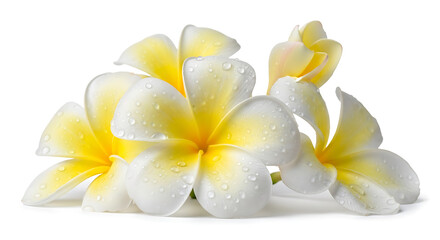
Automatic foreground separation
Remove White From an Image Online
PxBee’s white background remover identifies the main subject and removes the surrounding white area.
After processing, you can download the image with transparency, place the subject on another color, add a custom image background, reuse the cutout in a presentation, add a logo to branded materials, or build a product or social-media graphic.
Always review white details inside the subject before downloading. An automatic tool may have difficulty distinguishing a white background from white clothing, products, text or artwork.
Four clear steps
How to Remove a White Background
Choose a supported file, check the automatic cutout and use PNG to preserve transparency.
- 01
Upload your image
Choose a JPG, JPEG, PNG or WebP image with a white or near-white background.
- 02
Remove the white area
PxBee detects the foreground subject and converts the surrounding white background into transparency.
- 03
Refine the cutout
Use available adjustment controls if part of the subject was removed or white pixels remain around the edges.
- 04
Download as PNG
Save the result as a PNG to preserve the transparent background.
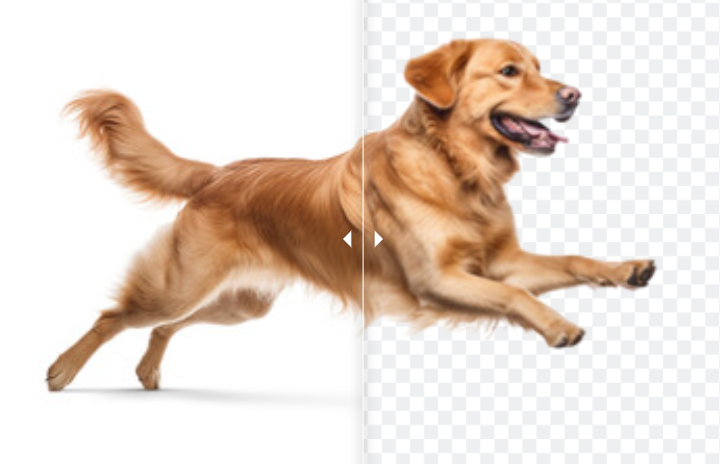
Know the output
White Is Not the Same as Transparent
A white background contains visible white pixels. Transparency contains pixels that allow another background or design to show through.
A transparent area may appear as a gray checkerboard inside an editor, the page color behind the image, or another photo or graphic placed below it.
Do not judge transparency by seeing white in a basic image viewer. Some apps display transparent pixels over a white canvas.
PNG supports transparency through an alpha channel. JPG does not support transparent pixels and will normally replace them with a solid color. Read the MDN image-format guide ↗.

Useful for focused assets
What Can You Remove a White Background From?
Review white details carefully in every type of image, especially when the subject is light, reflective or semi-transparent.

Product photos
Create a transparent product cutout for promotional graphics, catalogs, website layouts and marketplace-supporting designs. If you need to place a product on white rather than remove white, use the Background Changer.
Open Background Changer →
Logos and icons
Remove the white box around a brand mark before placing it over another design. For logo-specific controls and advice, use the Logo Background Remover.
Open Logo Background Remover →
Handwritten signatures
Separate dark handwriting from white paper and create a transparent signature image. Use the dedicated Signature Background Remover for this workflow.
Open Signature Background Remover →
Charts and presentation graphics
Remove white areas around a chart, diagram or graphic before placing it on a colored presentation slide. Review white labels and chart elements carefully because they may also be removed.

Stickers and illustrations
Turn artwork on a flat white background into a transparent cutout for authorized digital designs.

Portraits
Separate a person from a white studio or office background. Check white clothing, light hair and fine edges before using the result.
A focused browser workflow
Why Use PxBee’s White Background Remover?
Focused white-background detection
The tool is designed for images where white or near-white areas surround the main subject.
Transparent PNG output
Download a file that can be layered over another color, image or design.
Manual refinement
Adjust the removal mask when automatic detection needs help around small or light-colored details.
Common file support
The current editor accepts JPG, JPEG, PNG and WebP.
Online editing
Complete the workflow through a web browser without opening a complex desktop editor.
Related background options
Continue with other PxBee tools when you need a different color, photo or generated background.
Observable editing process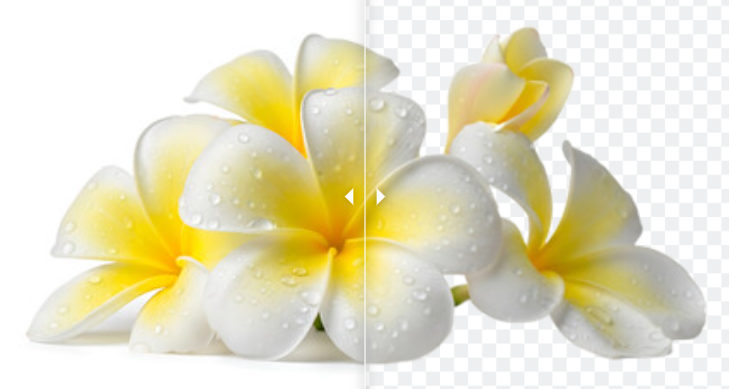
How AI White-Background Removal Works
PxBee does not publicly identify the exact AI model used by this tool. Its visible functions can be explained through the following process.
Subject detection
The system identifies the most likely foreground subject.
Image segmentation
It classifies pixels as part of the subject or surrounding background.
White-area analysis
The editor evaluates white and near-white pixels around the subject.
Edge-mask creation
It creates a digital mask around the retained foreground.
Transparent compositing
Background areas are converted into transparent pixels for PNG export.
Manual correction
Available refinement controls help restore missing details or remove leftover background pixels.
Cleaner cutouts
Tips for Better White-Background Removal
Use a sharp source image
Clear edges help the editor separate the subject from the white background.
Avoid overexposure
Bright lighting can wash out the subject and make light details blend into the background.
Watch white-on-white areas
White shirts, shoes, packaging, fur and product details can be difficult to distinguish from a white backdrop.
Check for gray shadows
A studio background may look white but contain gray shadows that remain after processing.
Review edge halos
Place the cutout on a dark test background. This makes leftover white edge pixels easier to see.
Inspect enclosed spaces
Check areas inside letters, handles, frames and other shapes where white background may remain.
Download in PNG format
Use PNG when you need transparency. Saving the result as JPG will remove the transparent effect.
Keep the original image
Preserve the source before downloading or replacing the background.
Honest expectations
Difficult White-Background Images
Automatic removal may require extra refinement when an image contains white clothing on a white background, white or transparent products, pale hair or fur, reflective metal or glass, soft studio shadows, semi-transparent fabric, light-colored logos, white text inside a graphic, low-resolution screenshots, blurred subject edges or off-white paper textures.
If too much of the subject disappears, try a clearer source or use the manual restore control.
Read AI Image Editing Limitations →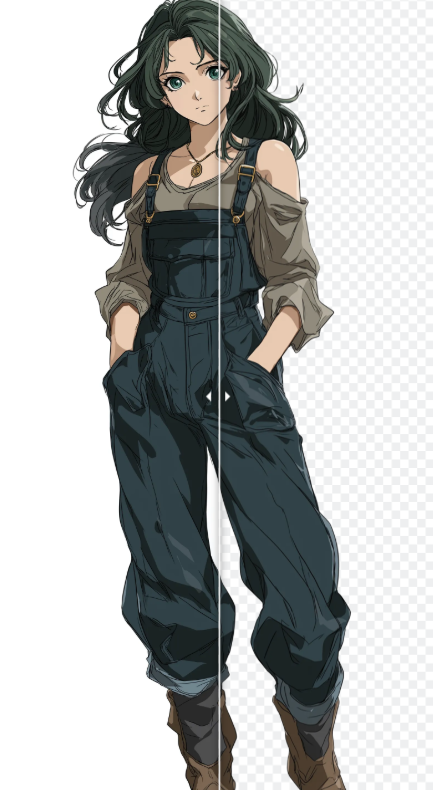
Choose the precise workflow
Continue With the Right PxBee Tool
Keep removing-white intent on this page and use a specialist page when the next task changes.
01
Make any image background transparent
Use the Transparent Background Maker for general transparent-background creation.
Open tool →02Create a transparent PNG
Use the PNG Maker when PNG conversion is the main task.
Open tool →03Remove a black background
Use Remove Black Background for images built against dark or black surroundings.
Open tool →04Remove a logo background
Open the Logo Background Remover for brand marks and emblems.
Open tool →05Remove a signature background
Open the Signature Background Remover for handwriting on paper.
Open tool →06Add a new background
Use the Background Changer to apply a color or upload another image.
Open tool →Quick answers
White Background Remover FAQ
It removes an existing white background and converts it to transparency. Use the Background Changer if you want to add white behind a subject.
Upload the image, let PxBee identify the foreground, review the cutout and download the result as a transparent PNG.
PxBee currently presents the tool as free. Check the editor for any current usage, account, resolution or export limits.
This page lets you select an image without requesting an account first. Review any account requirement shown in the production editor before continuing.
The current interface supports JPG, JPEG, PNG and WebP files up to 20 MB.
PNG supports transparent pixels. JPG does not preserve a transparent background.
The image viewer may display transparent pixels over a white canvas. Open the PNG in an editor with a checkerboard or place it over a colored background to confirm transparency.
The tool may have classified white details as background. Restore the missing area manually or try a clearer image with better subject separation.
Preview the result over a dark background, zoom into the edges and use the available refinement controls to remove leftover white pixels.
Yes, but the dedicated Logo Background Remover provides a more relevant workflow.
Yes. Use the Signature Background Remover for focused handwriting detection.
This page is designed to remove white. Use the Background Changer when you need to add a white background.
That depends on the source resolution, export dimensions and printer requirements. Background removal does not increase resolution or convert the image into vector artwork.
Ready for a transparent result
Remove the White Background From Your Image
Upload a product photo, logo, signature, portrait or graphic and convert the surrounding white area into transparency.
JPG, JPEG, PNG and WebP supportedFor information about image processing and usage conditions, review the Privacy Policy and Terms of Service.