The Magic Brush sets the boundary
The mask defines where editing is allowed and protects the rest of the photo as much as possible.
Upload an image, brush over the part you want to change, and describe the replacement. PxBee generates new content inside the selected area while using the rest of your image as visual context.
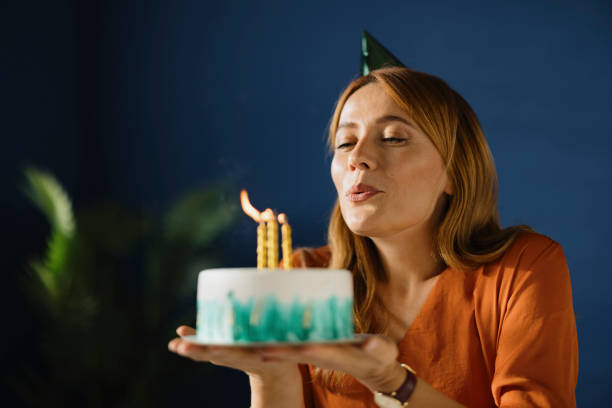
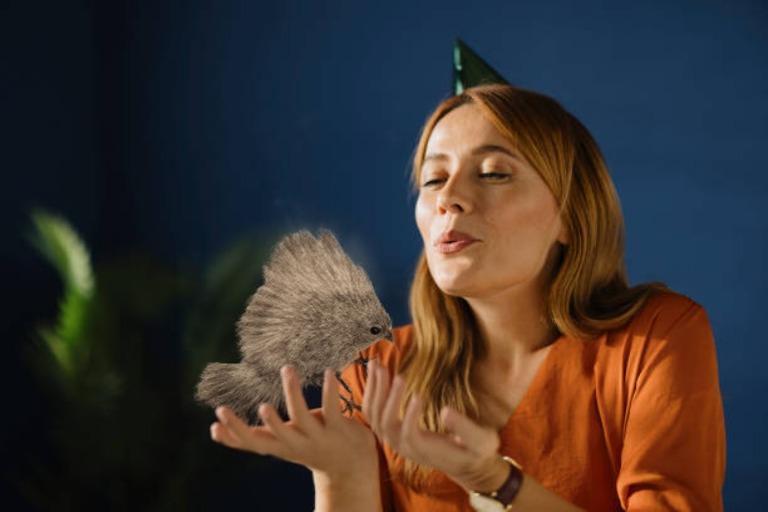
Choose a file and describe the replacement before opening the PxBee editing workspace.
Sometimes a photo is almost right, but one object, color, accessory or detail does not fit. PxBee AI Replace lets you select a particular image region and generate something new in its place.
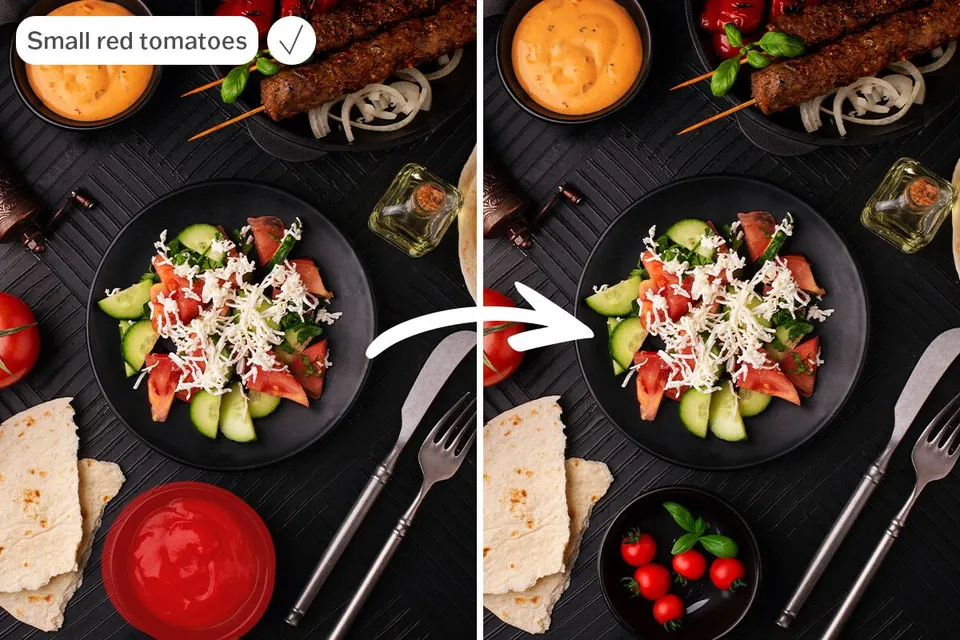
AI Replace is a localized generative editing tool—sometimes called generative inpainting.
The mask defines where editing is allowed and protects the rest of the photo as much as possible.
The surrounding photo supplies context while the prompt explains what should appear inside the selected area.
Choose a supported image containing the object or area you want to edit.
Cover the object, its visible edges and any shadow that should also change.
Write what you want to see. Include color, material, size and placement when they matter.
PxBee uses the mask, prompt and surrounding image as visual context.
Check scale, perspective, lighting, contact points, shadows and important details.
Save the version that best fits your image and intended use.
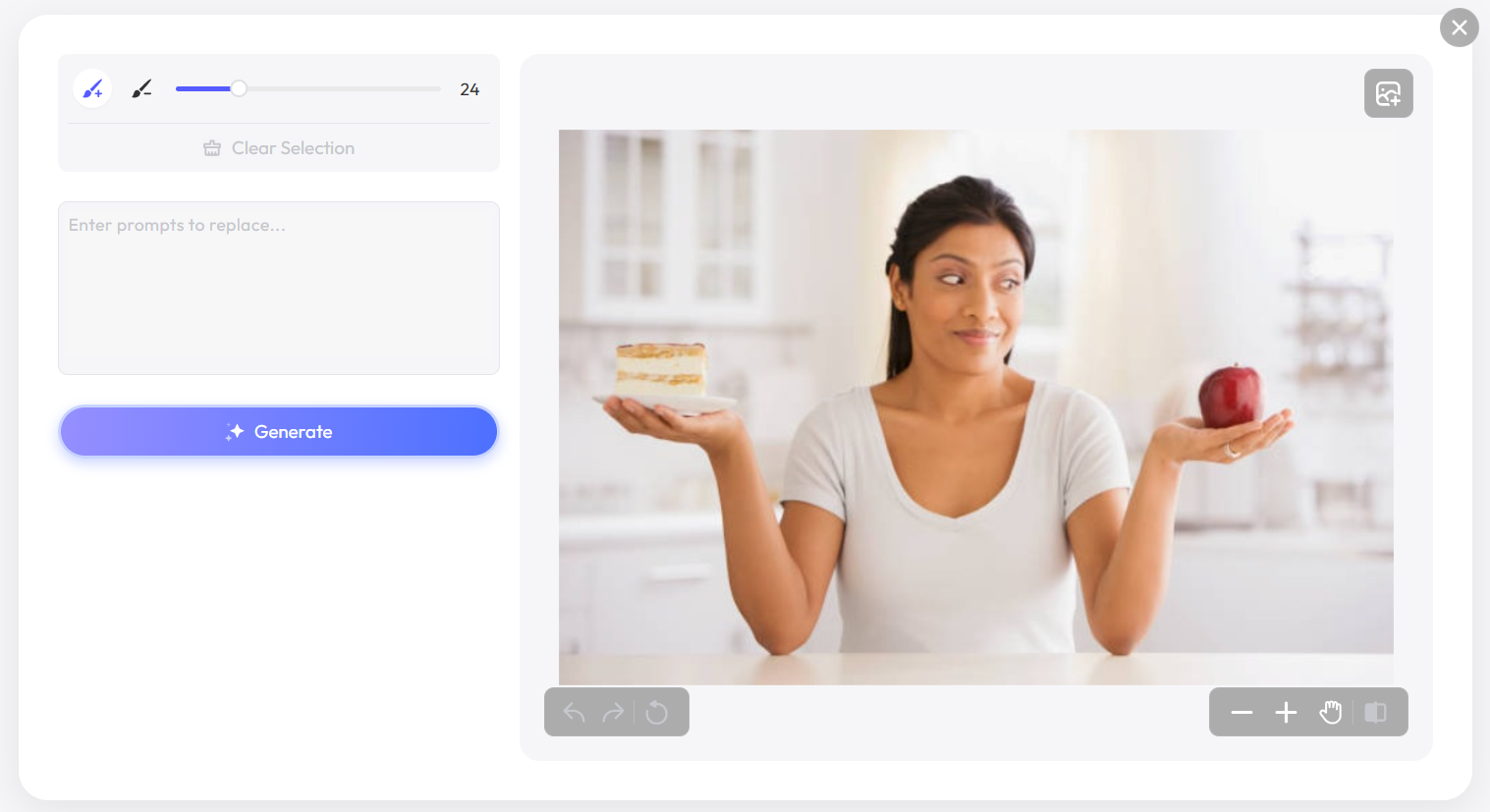
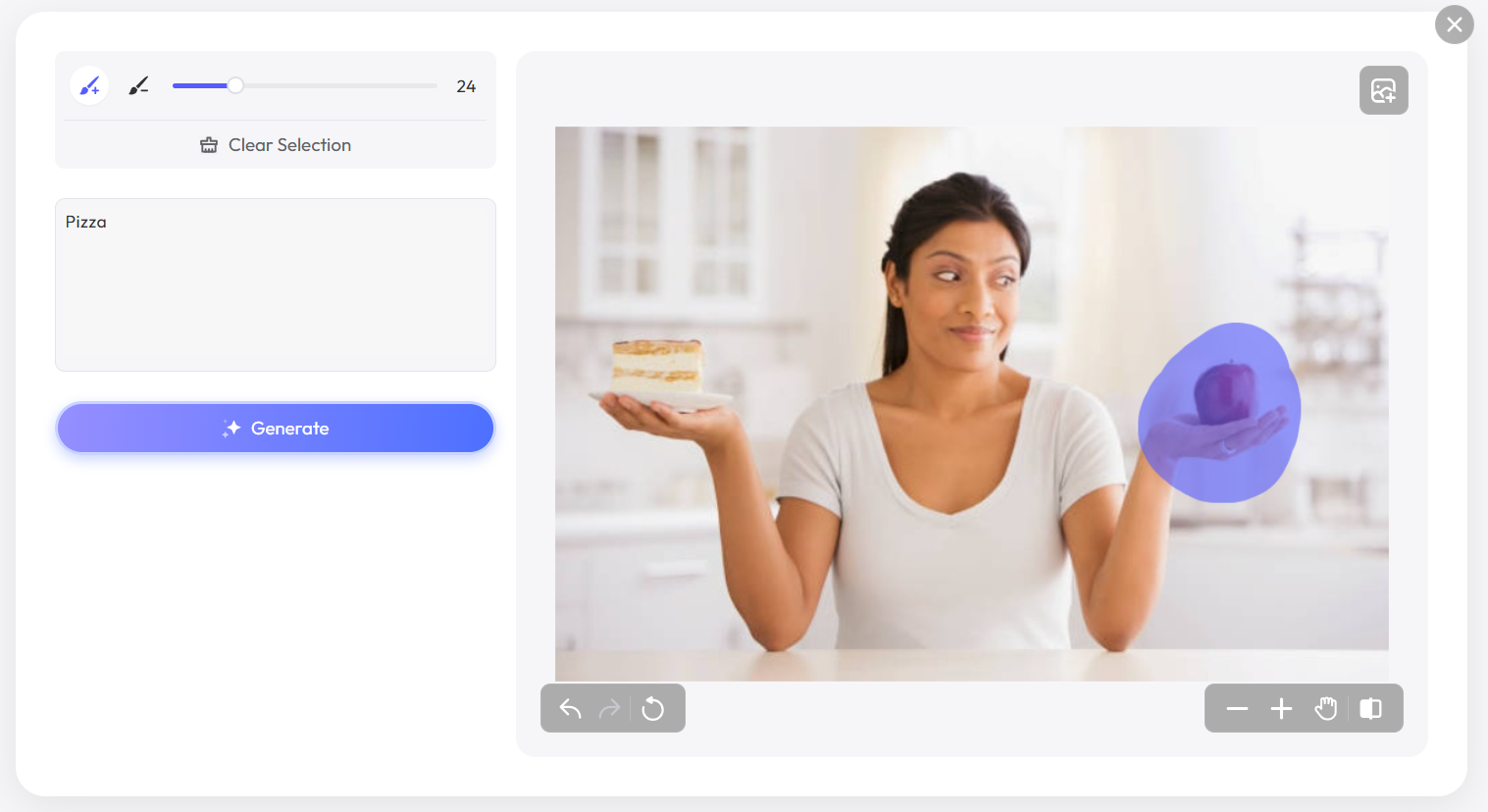
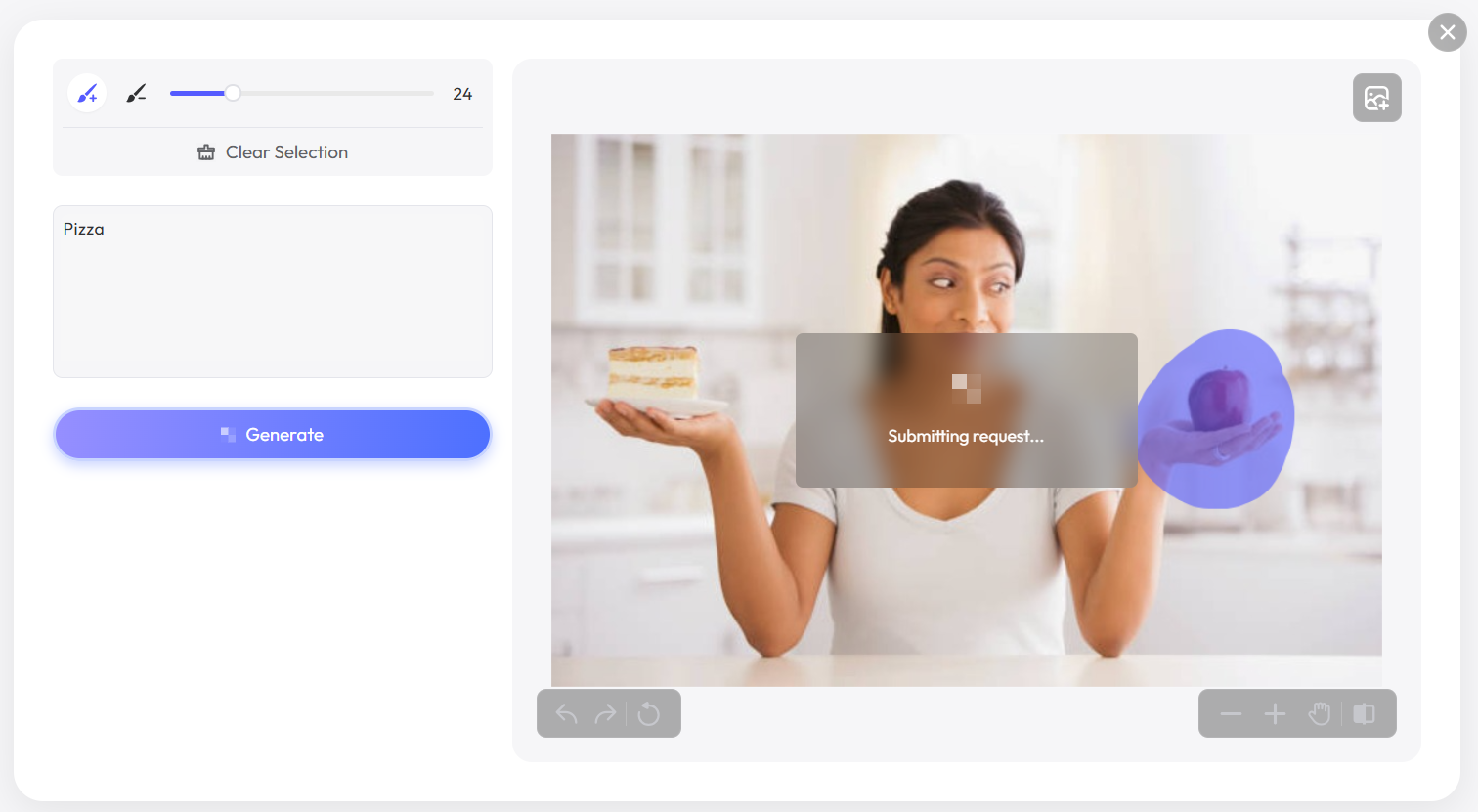
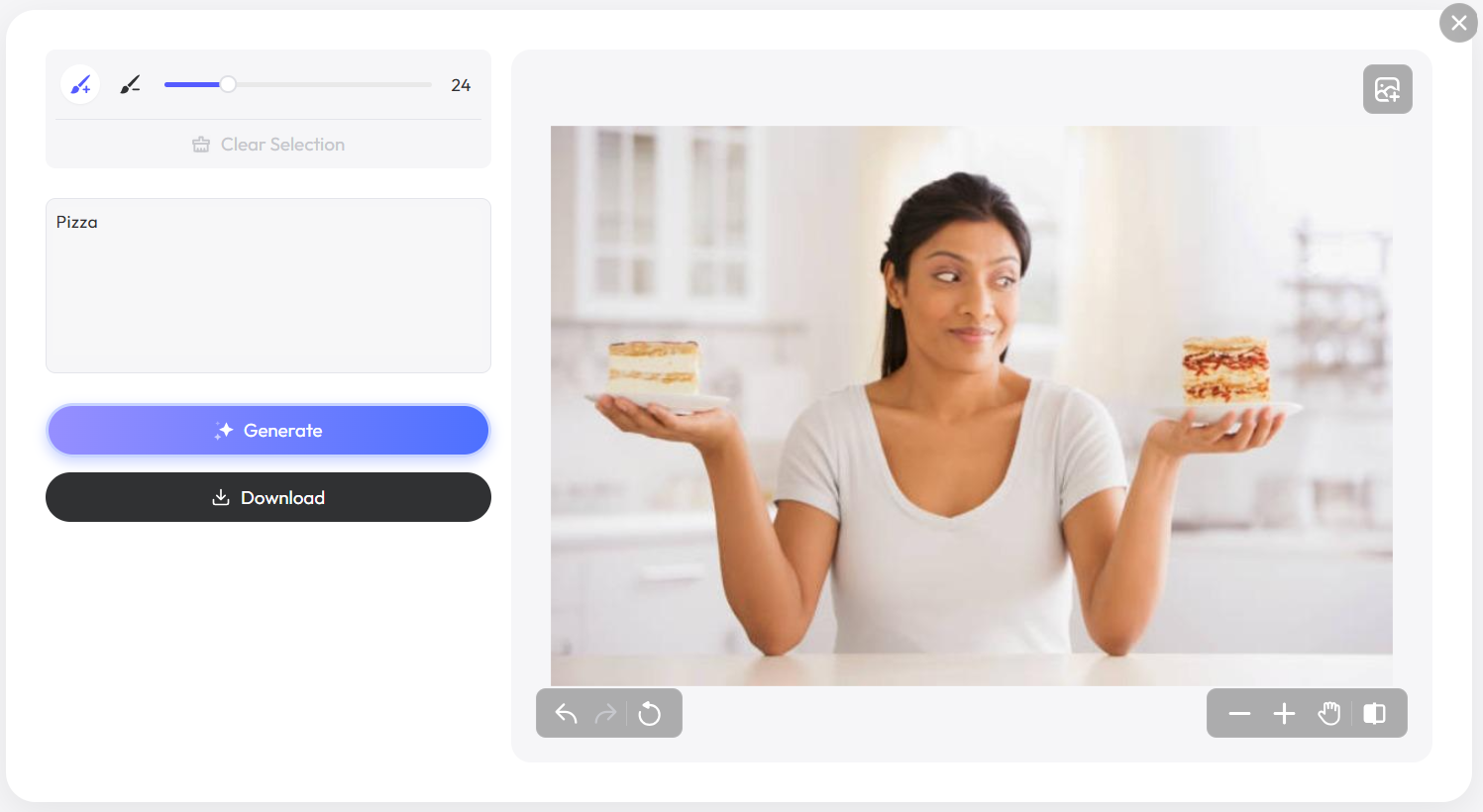
Cover the whole original object and add only a narrow margin when blending needs more context.
Include every visible part. A partial mask may leave fragments behind.
Too much extra space can cause unrelated parts of the image to change.
A small surrounding area can help the new content blend into the scene.
Use a smaller brush near hair, fingers, handles and overlapping objects.
Start with the new object. The brush already tells PxBee where to edit, so use the prompt for the object, color, material, shape, size, angle, lighting, placement and style.
Complete one localized edit at a time. Avoid prompts requesting protected logos, counterfeit packaging, forged documents or deceptive evidence.
| Task | Example prompt |
|---|---|
| Replace a cup | |
| Replace a lamp | |
| Add flowers | |
| Change an accessory | |
| Replace furniture | |
| Add food | |
| Restyle fabric | |
| Replace a sky region |
Explore decorative props, display surfaces, seasonal elements, accessory combinations, layout concepts and campaign directions without arranging every physical variation.
Generated editing can unintentionally alter packaging text, product color, logos, labels, controls, dimensions or included accessories. Do not publish an image that misrepresents what a customer will receive.
For detailed instructions, read how to replace an object in a photo or add an object to a photo with AI.
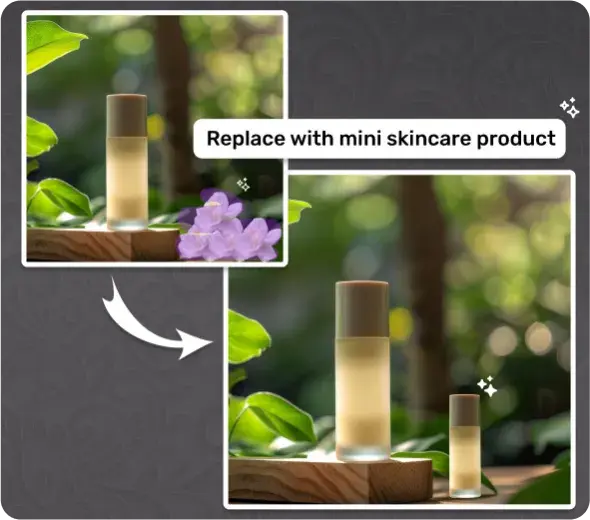
Brush over an empty area and describe what should be added. Select enough room, state where the object should sit, match the camera angle, describe a suitable size and mention the expected surface or shadow.
Open AI Generative Fill →If the shape and texture are already correct and only the color should change, a full generative replacement may introduce unnecessary differences.
Use AI Color Replace →
Use the Hairstyle Changer, Buzz Cut Filter or AI Clothes Changer for more focused intent. These are simulations and cannot guarantee how a real haircut, color, garment, fit or fabric will look.
Read how to change hair in a photo and change clothes in a photo.

Use AI Replace when only part of a scene should change. Check light direction, reflections, horizon edges, weather consistency, ground shadows and color cast on the subject.
Use the Background Changer for the complete background or AI Sky Replacement for focused sky controls. Read how to change the sky in a photo.
| Tool | Best used when |
|---|---|
| AI Replace | You want to generate new content inside a selected area |
| AI Generative Fill | You want to add or reconstruct image content |
| Magic Eraser | You want an unwanted element removed without specifying a replacement |
| Background Changer | You want to replace the complete background |
| AI Sky Replacement | You specifically want to change the sky |
| AI Color Replace | You want to change color while retaining the object |
| AI Image Extender | You want to generate content beyond the current canvas |
AI replacement can create useful variations, but it can also introduce visual errors. When exact wording matters, use a proper text or design editor rather than generated text.
Read AI Image Editing Limitations →Only edit images you have the right to use. Get informed consent before making realistic appearance or identity changes to another person.
Disclose generated edits when viewers could reasonably mistake them for authentic documentary images.
Upload your image, create a careful mask, write a direct prompt and review the generated result before publishing.
Current editor limits and export terms may apply.